Authority Service White Screen
Problem Description
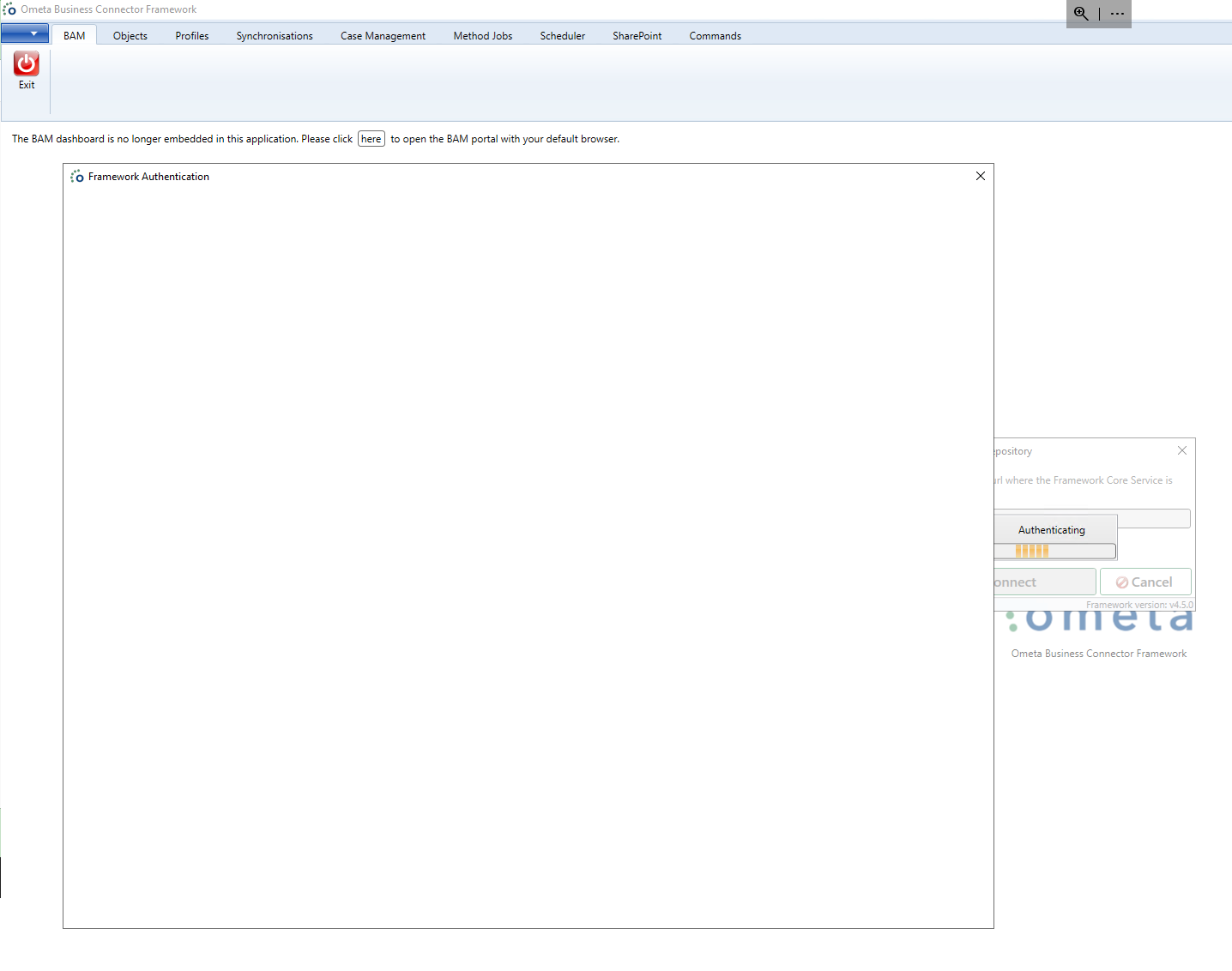
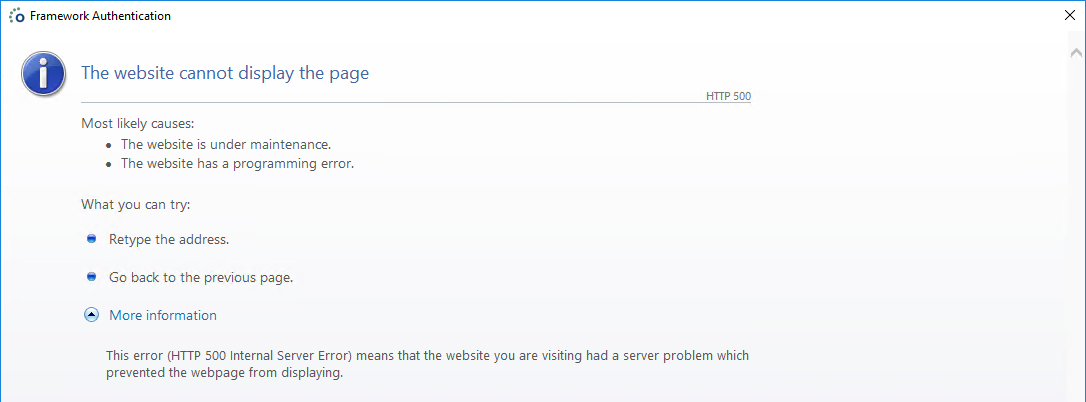
Upon starting the Ometa Business Connector, the authentication process may get stuck, resulting in a blank white screen or an error message that reads "The website cannot display the page". This issue can prevent users from accessing the application and can be frustrating to troubleshoot.
Root Cause
The Authority Service White Screen error is usually caused by strict Internet Options settings that prevent the Business Connector from completing the authentication process. This can happen if the Ometa Service URLs are not added to the trusted sites list, or if the Logon settings are not configured correctly.
Resolution
To fix this issue, follow these steps:
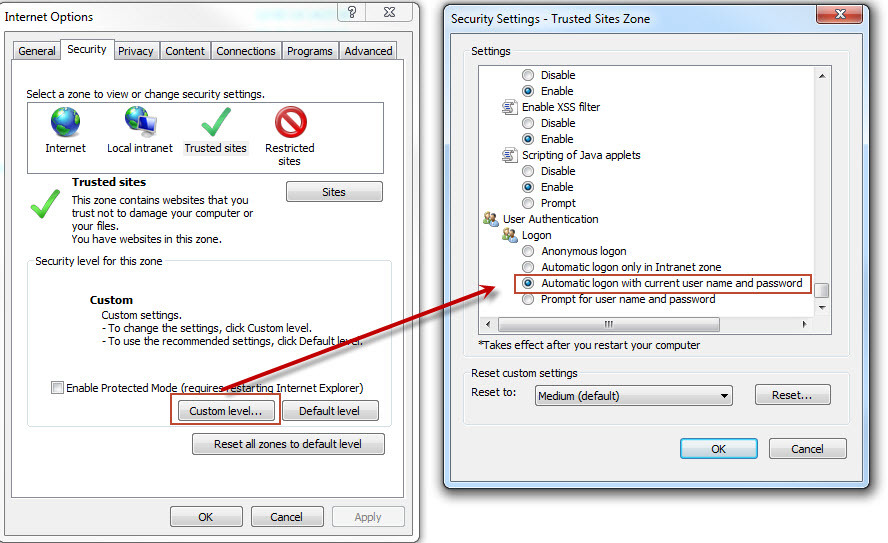
- Add all Ometa Service URLs to the trusted sites list. This can be done in the Internet Options settings of the web browser.
- Ensure that the Logon settings are set to "Automatic logon with current user name and password". If it is set to "Prompt for user name and password", it may result in the blank white screen or "website cannot display the page" error.
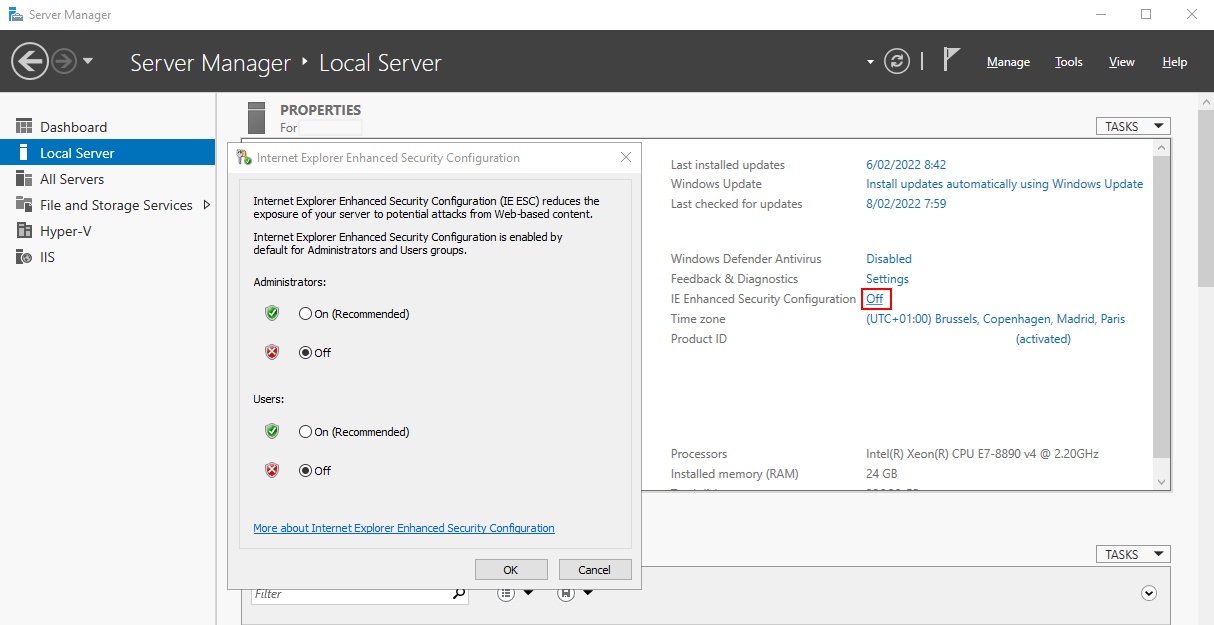
If you are unable to modify the Internet Options settings due to local security or group policies, you can try disabling the Internet Explorer Enhanced Security Configuration as a workaround. However, this is not recommended as it may pose security risks.
By following these steps, you should be able to resolve the Authority Service White Screen error and access the Ometa Business Connector without any issues.