2. Case Management Configuration
The following configuration needs to be done in case management to setup the document approval flow.
Create the (System) Document Approval Lifecycle
First, we need to create the Document Approval lifecycle.
- Open the Objects tab of the Business Connector.
- Go to the object DCS.System and click on the method Ensure System Lifecycles.
- Click on Test Method.
- Select the default DCS Utilities profile.
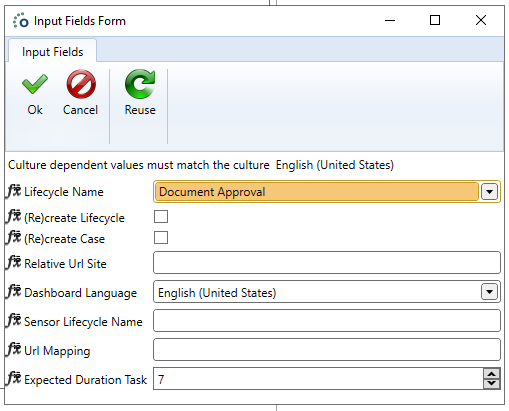
- Select Document Approval in the Lifecycle Name dropdown.
- Fill in the correct expected duration task, this is the default value for the due dates of the document approval. Users can still change this when starting an approval.
Note
When upgrading to a new version with document approval changes it's best to execute this method again for the latest version.
Create the (System) Document Approval Pages Grouped Action
- Open the Objects tab of the Business Connector.
- Go to the object DCS.System and click on the method Ensure System Grouped Actions.
- Click on Test Method.
- Select the default DCS Utilities profile.
- Select Document Approval Pages in the Grouped Action Name dropdown. Select the building blocks profile in the * Profile* field to execute the actions on.

Note
When upgrading to a new version with document approval changes it's best to execute this method again for the latest version.
Create a State Action for the Document Approval Pages on your Lifecycle
Document approval uses several SharePoint pages to start the approval, view the approval log, etc. The grouped action we created earlier needs to be added to the state of a lifecycle. This is the lifecycle which will use the document approval on its site.
Tip
When working with a lot of sites using the document approval it's best to create a global (approval) lifecycle and ensure the document approval pages there.
- Open the Case Management tab of the Business Connector.
- Select your lifecycle.
- Go to Flow Designer.
- Right-click on the state responsible for the creation of the site and click Open Details.
- Add the Document Approval Pages grouped action to this state. Make sure the action is set to refresh.
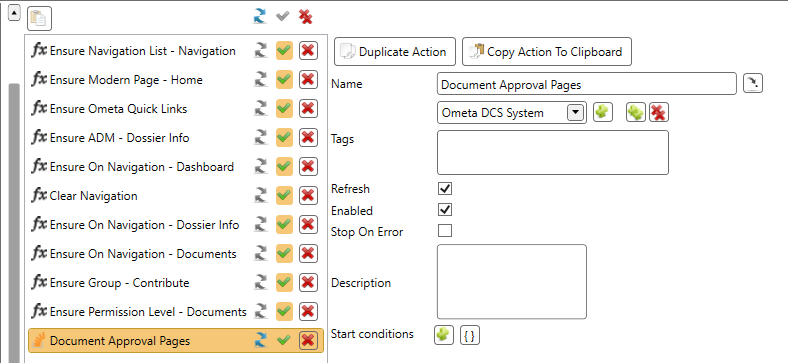
- Refresh the case(s) of this lifecycle.
Configure the Document Libraries
To work with approval the document libraries need a couple of fields. Those fields can be ensured on a library with a generic building block. The following fields will be added:
- Document Type: choice field to specify the type of the document, can be set to multi value.
- Document Tag: a text field to set the tag of the document.
- Year: the year of the document.
- Approval Status: the status of the document approval for the document, this field has custom styling with a button to start the approval and a link to the approval log page. An approval button in the ribbon can be optionally added.
- Approval Log: a multi line text field with the log entries of the approval, only visible in the display form of an item.
The default views of the library will have the Document Type, Document Tag, Year and Approval Status fields added.

Take the following steps to configure those fields on the document libraries:
- Open the Case Management tab of the Business Connector.
- Click on Methods in the ribbon.
- Make sure a DCS method is added for the method Ensure Generic Library of object DocumentApproval.Site.
- Close the methods window.
- Add this action to every document library where document approval will be used. For more information about this method, refer to the API.

- Refresh the case(s) with the updated library actions.
Tip
When using a global (approval) site for the approval pages, make sure the Approval Site Url is set with this site's URL. The parameter RetrieveCaseWithUrl will be passed as true indicating the source case will be retrieved using the URL of the site of the document library.