5. Configuring a Documents ADM with the Document Approval (Optional)
When using the Documents ADM to display the SharePoint documents you need to configure the following settings on the object to enable the document approval flow.
[!INFO] By default this is configured in the example object Ometa.Examples.DocumentADM on the multi record view Get Documents, these steps are only necessary when working with on older object or a custom view. For a document ADM you can just create a copy from this object and start from there.
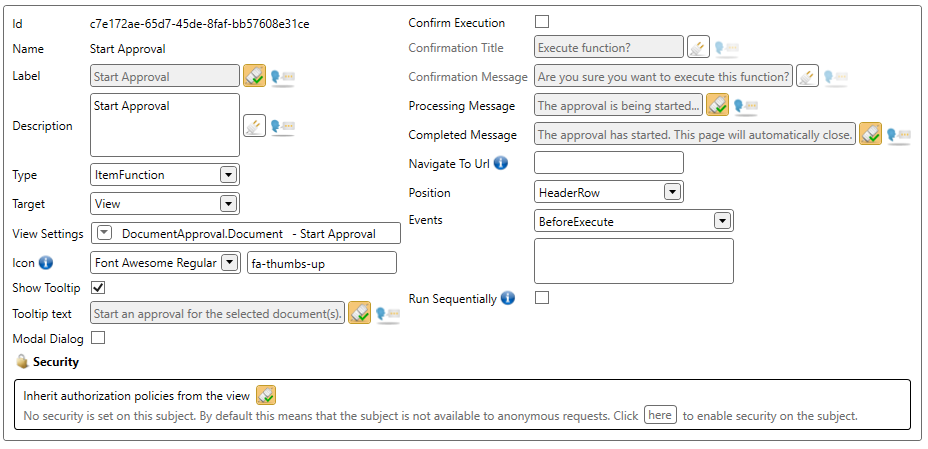
Adding the Start Approval view as a function on the view.
The standard view to start an approval can be added to the multi record view of a documents ADM.
The multi record view of the documents ADM should contain the following fields:
- OmetaFieldSPWeb.Url: the full URL to the SharePoint site, can be left empty when working with documents of the root site and when the approval pages are on the same site, ex. 'https://yourcompany.sharepoint.com/sites/TeamA/Subsite1'
- OmetaFieldLibrary: the title of the library, ex.: 'Workdocuments', 'Documents'
- OmetaFieldItemID / OmetaFieldList Item ID / OmetaFieldDocument ID: the ID of the list item of the document.
Add the Approval Status Field to the Multi Record View
Next we need to add the field to display the approval status.
Create a new field with external name ApprovalStatus and add the field to your multi record and / or single record view.
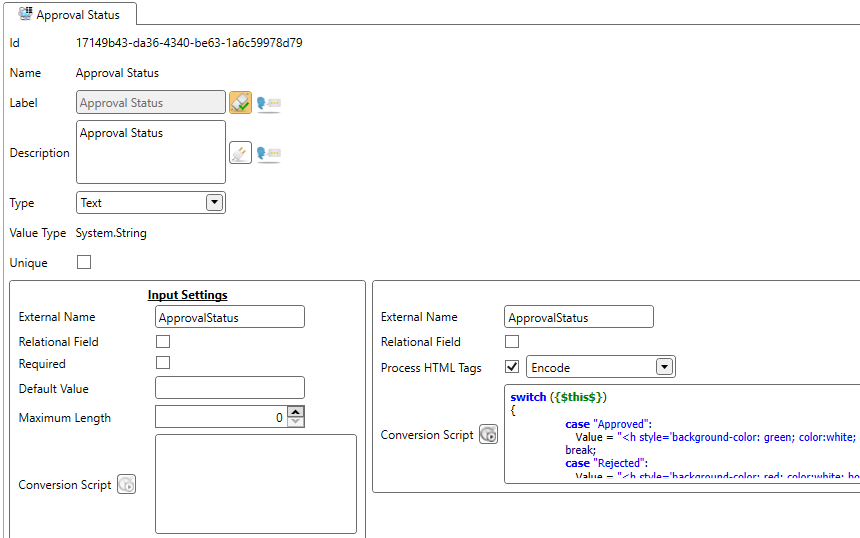
The following conversion script can be used on this field to style the status and add a link to the approval log page, just like the field in the SharePoint library:
switch ({$this$})
{
case "Approved":
Value = "<h style='background-color: green; color:white; border-radius: 10px; padding: 5px; line-height: 25px;'><i class='fas fa-check-circle'></i>  <a style='text-decoration:none;margin:3px;font-size:10px;color:white;' title='Show approval log for this document.' target='_blank' href='" + {$SPWeb.Url} + "/SitePages/Approval Log.aspx?OmetaFieldFile Url=" + {$FileRef} + "' rel='noopener noreferrer' data-interception='off'>" + {$this$} +"</a> </h>";
break;
case "Rejected":
Value = "<h style='background-color: red; color:white; border-radius: 10px; padding: 5px; line-height: 25px;'><i class='fas fa-times-circle'></i>  <a style='text-decoration:none;margin:3px;font-size:10px;color:white;' title='Show approval log for this document.' class='sp-field-quickActions ms-fontColor-themePrimary' target='_blank' href='" + {$SPWeb.Url} + "/SitePages/Approval Log.aspx?OmetaFieldFile Url=" + {$FileRef} + "' rel='noopener noreferrer' data-interception='off'>" + {$this$} + "</a> </h>";
break;
case "Pending":
Value = "<h style='background-color: #ccc; border-radius: 10px; padding: 5px; line-height: 25px;'><i class='fas fa-circle-notch fa-spin'></i>  <a style='text-decoration:none;margin:3px;font-size:10px;color:#0078d4;' title='Show approval log for this document.' class='sp-field-quickActions ms-fontColor-themePrimary' target='_blank' href='" + {$SPWeb.Url} + "/SitePages/Approval Log.aspx?OmetaFieldFile Url=" + {$FileRef} + "' rel='noopener noreferrer' data-interception='off'>" + {$this$} + "</a> </h> <br/>";
break;
default:
Value = {$this$};
break;
}
Linking to the Approvals Page (Deprecated)
Warning
This has been deprecated because the documents ADM used on the approvals overview page has full control permissons for every user. The links behind the approval button in the ribbon and the status field have also been changes to just a form to start the approval.****
You can link to the Approvals.aspx by using a list function on your multi record view.
Add the following fields as url context to the url:
- OmetaFieldRelativeUrl: server relative url to the SharePoint list: ex.: '/sites/Team1/Shared%20Documents'
- OmetaFieldLibrary: the title of the library, ex.: 'Workdocuments', 'Documents'
- OmetaFieldSPWeb.Url: the full url to the SharePoint site, can be left empty when working with documents of the root site ex. 'https://yourcompany.sharepoint.com/sites/TeamA/Subsite1'
- OmetaFieldFolder: the name or path of the folder(s) to filter, ex. 'RootFolder/Subfolder1', 'Folder1'
Make sure the relative url and library values are encrypted using the BC.Utilities.Encrypt function and the values are encoded for a URL, for example: https://[your SharePoint site] /SitePages/Approvals.aspx?OmetaFieldRelativeUrl=[encrypted relative URL value] &OmetaFieldLibrary=[encrypted library value].