Lifecycle State Management
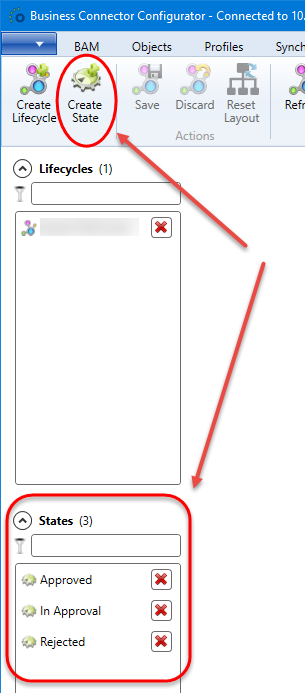
Before states can be added to a lifecycle flow, they must be created as a sort of master data to the Case Management System. Adding or removing lifecycle states can be done on the Case Management tab of the framework WpfGUI client.
Note
Make sure that every new state gets the proper name up front as renaming states is not possible. Replacing states by removing and recreating can only be done when that state isn't used in any existing lifecycle flow.
Add New State
Creating a new state is simple by clicking on the Create State button in the top ribbon. Fill in a new name that doesn't exist yet and click OK to add it to the list of existing lifecycle states. Click Cancel to abandon the creation attempt.

Lifecycle state names must be unique otherwise unpredicted behaviour may occur in the Case Management Engine during case transitions to a state with a name that
has duplicates in the database. A new state name is considered already existing when it already appears in the states list regardless of casing, for example
Rejected, rejected and REJECTED are all duplicate names.
When such a state is found, a message is shown and the user can retry to give a new but different name.

Remove Existing State
When a lifecycle state isn't used anymore on any of the existing lifecycle flows, it can be removed from the list of lifecycle states by clicking on the red cross icon on the right side of the state name.
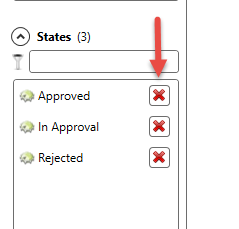
Clicking on the cross icon will mark the state for removal.

To remove the state for real, click the Save button in the ribbon on the top of the window. Undoing the selection for removal can be done in 2 ways: either click on the small arrow icon which replaced the red cross and then click Save, or click the Discard button in the top ribbon.
Note
Keep in mind that a Discard will undo all unsaved changes made to Case Management. Make sure the removal selection of a state is the only modification that needs rollback or other changes will be lost as well.
Warning Existing State Being Used
If a state is still used on a lifecycle flow, the following warning will be shown during the attempt to save the removal changes to the database:
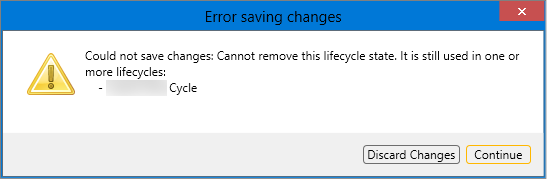
The warning lists all lifecycles that contain the state in their flow.
Click on Discard Changes to rollback the attempt and return to the previous situation, or Continue to keep the state selected for deletion, and for example set the state as being deleted on the listed lifecycles as well to be able to fully remove the state from the Case Management System.