Context Manager
The context manager is a component which saves context in a temporary session of the current web browser tab. This could be used to easily filter other components on the page.
When the search button is clicked, the context manager form is validated. If there is an error in the form (fields are not filled in, data source errors, ...), the context manager cannot be submitted. If the form is valid, all the context fields are set in the temporary session of the current web browser tab. If there are ADMs on the page, they will be refreshed. When the ADM is refreshed, the view of this ADM will be re-executed and the context manager context is sent with this request. This context manager context could be used as input fields on the method used by the ADM view.
Context
The context of the context manager is applied as long as the web browser tab is open. When the current web browser tab is closed or the users clicks on the clear button, the context is cleared.
Defaults
On context manager fields it is possible to configure default values. When there are default values, these values will be filled out in the form. These values are also immediately set as context.
Configuration
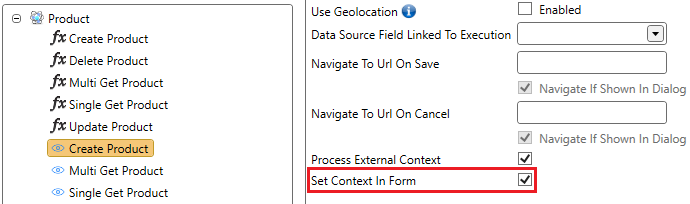
It is possible to enable or disable this property on each create view.
- Go to a create view.
- Click the advanced tab.
- Check the Set Context In Form checkbox.
External Context
External context is a collection of:
- Source system context
- In SharePoint this contains the current user, language, URLs, ...
- Case context
- Only applicable if Case Management is used. All lifecycle properties which are synced with site are available as context.
- Profile context
- Each method is executed on a profile. All the fields of this profile could be used as context.
- Environment context
- Context from the Ometa Server could be used.
When an external context field matches the name of a field in the context manager, it will be filled out. Optional default values are overwritten by the external context. Because it is overwritten, these fields will be set as read only in the context manager.
Context as Input Fields
Every value of the context can also be used as an input for a method. When using a context value as input it can also be added to the input fields of that method, this is not required but we advice to do so since it will give a better overview of all the inputs used in a method. In the following example, the claim.name input field comes from the user information context of SharePoint:
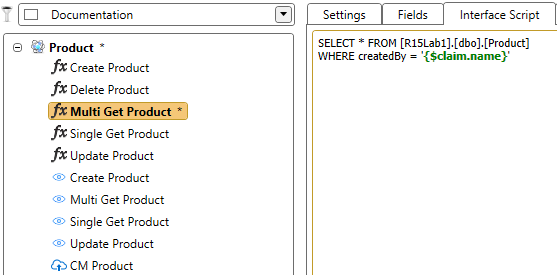
Context Example
If you execute a method you can easily see this "collection of context". Right click on the object or method and select View Usage Info in File.
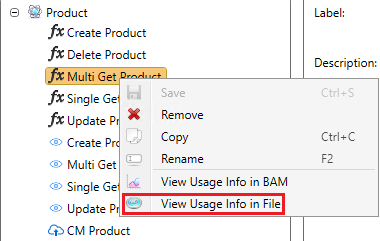
If you do this you get a unattractive "usage information explorer". If you want to get a full overview of all fields that were passed during the execution of the method, the best thing you can do is to copy and paste the entries in Notepad(++). Here you see an example of all input parameters that were passed during the execution of the method Multi Get Product.
Notice you immediately see the Environment, claim, case, identity, SharePoint, and profile context because this is always prefixed with respectively Environment., claim., case., identity., SP[Web/Site]., and Profile.. All these fields can be used as input field and can be used in your interface scripts.
Also note that this list of fields can be different depending on the executed method, user,...
case.createdby = OMETA\app
case.datecreated = 2019-04-16T07:13:26.0370000
case.dateprovided = 2025-02-07T12:07:08.2170000
case.description = Dashboard
case.displayname = Dashboard
case.id = 18078
case.internalfullurl = https://ometa.sharepoint.com/sites/dashboard
case.isprovisioned = True
case.isusermanager = False
case.lifecycle.casetype = Site
case.lifecycle.description = Dashboard Lifecycle
case.lifecycle.id = 1144
case.lifecycle.lifecycletype = Dashboard
case.lifecycle.name = Dashboard Lifecycle
case.lifecycle.storageurl =
case.lifecycle.template = STS#0
case.name = 1144 - Dashboard
case.properties.type = Dashboard
case.properties.active = True
case.publicfullurl = https://ometa.sharepoint.com/sites/dashboard
case.relativeurl = dashboard
case.roles = Site Administrator
case.roles.csv = Administrators,Site Administrator
case.state.id = 1
case.state.name = Actief
case.status = Permissions processed successfully
case.statusid = 7
case.storageurl =
case.template = STS#0
case.weburl =
claim.adgroup = Site Administrators
claim.adgroup.id = S-1-5-21-654654654-45565456-541654145-465465
claim.emailaddress = app@sharepoint.com
claim.givenname = App
claim.name = App
claim.nameidentifier = DFSFdfd65dfs5464ds_sqd65sq465dq4DSQQD
claim.objectidentifier = 00000000-0000-0000-s655-454qs65d4sq465
claim.preferred_username = app@sharepoint.com
claim.rh = 1.qs65d4qsdqsf65qd1fsdv_sdf54dsf.
claim.sid = d606e326-7fc9-4707-ae4d-ac644027c8b1
claim.surname = Swannet
claim.tenantid = 881e1560-694e-4203-a502-89fd77740eed
claim.uti = _qs56dsqd968q4s9dsq48
Environment.CurrentDirectory = c:\windows\system32\inetsrv
Environment.CurrentManagedThreadId = 215
Environment.Is64BitOperatingSystem = True
Environment.Is64BitProcess = True
Environment.MachineName = OMETA
Environment.OSVersion = Microsoft Windows NT 10.0.14393.0
Environment.ProcessorCount = 16
Environment.SystemDirectory = C:\Windows\system32
Environment.SystemPageSize = 4096
Environment.UserDomainName = OMETA
Environment.UserInteractive = False
Environment.UserName = App
Environment.Version = 4.0.30319.42000
Environment.WorkingSet = 958836736
flightdate = 2020-09-10
Folder =
General.Method = Get Documents
General.Object = Document ADM
General.Output = Output/Out_20231113141640_076993_15588_0
General.Profile = REST - Graph - On Behalf Of
identity.displaynames = OMETA\App
identity.emails = app@ometa.net
identity.emails.csv = app@sharepoint.com,app@ometa.net
identity.groupids = S-1-5-20-4556465465-5465465-56456465-5456
identity.groups = Site Administrators
identity.identifiers = 00000000-0000-0000-s655-454qs65d4sq465 (Microsoft)
identity.isadministrator = True
identity.isanonymous = False
identity.iscasemanagementadministrator = True
identity.person.email = app@ometa.net
identity.person.id = 5
identity.person.isadministrator = True
identity.person.name = App (Admin)
identity.user.email = app@ometa.net
identity.user.id = 10583
identity.user.name = App (Admin)
identity.user.phonenumber =
identity.user.provider.id = 2
identity.user.provider.name = Microsoft
identity.user.providerkey = 654654654dqs-dsq65f46sd-52qs165df-65sqd465-wsd564f65dq4s
List = Documents ADM
Profile.Certificate Key Path =
Profile.Certificate PEM Path = CN=Ometa Certificate, C=BE, O=Ometa BV
Profile.Error Message Selector = error/message
Profile.IP = localhost
Profile.KeepConnectionOpen = True
Profile.OAuth Client ID = 881e1560-694e-4203-a502-89fd77740eed@881e1560-694e-4203-a502-89fd77740eed
Profile.OAuth Client Secret = ********
Profile.OAuth Grant Type = urn:ietf:params:oauth:grant-type:jwt-bearer
Profile.OAuth Scope =
Profile.OAuth Url =
Profile.OAuth Use On Behalf Of = True
Profile.OpenConnectionIdleTimeAllowed = 15
Profile.Password = ********
Profile.Port = 2002
Profile.REST Standard = ODataV4
Profile.Url = https://graph.microsoft.com/v1.0
Profile.Username =
request.acceptlanguage = en,en-US;q=0.9,nl;q=0.8,lb;q=0.7
request.host = 192.168.45.33
request.ipaddressv4 = 192.168.45.33
request.ipaddressv6 = ::ffff:192.168.45.33
request.originatingurl = https://ometa.sharepoint.com/sites/dashboard
request.referer = https://ometa.sharepoint.com/
request.url = https://rest.ometa.net/api/objects/Documents ADM/views/Get Documents/prepare
request.useragent = Mozilla/5.0 (Windows NT 10.0; Win64; x64) AppleWebKit/537.36 (KHTML, like Gecko) Chrome/142.0.0.0 Safari/537.36
Site ID =
SPSite.ID = 3c845654-ff79-4510-bf50-493a60c025ff
SPSite.Owner.Email = app@ometa.onmicrosoft.com
SPSite.ServerRelativeUrl = /sites/dashboard
SPSite.Url = https://ometa.sharepoint.com/sites/dashboard
SPWeb.Created = 04/16/2019 07:13:26
SPWeb.CurrentLanguage = 9
SPWeb.CurrentUser.Email = app@ometa.onmicrosoft.com
SPWeb.CurrentUser.ID = 5
SPWeb.CurrentUser.LoginName = app@ometa.onmicrosoft.com
SPWeb.CurrentUser.Title = App (Admin)
SPWeb.CurrentUser.UserId = 5
SPWeb.Description =
SPWeb.ID = 761bdbcc-8d93-4846-b0e3-fb1d1737c0c2
SPWeb.Language = 1033
SPWeb.LastItemModifiedDate = 11/13/2025 10:22:02
SPWeb.MasterUrl = /sites/dashboard/_catalogs/masterpage/seattle.master
SPWeb.RegionalSettings.CollationLCID = 2070
SPWeb.ServerRelativeUrl = /sites/dashboard
SPWeb.Title = Dashboard
SPWeb.Url = https://ometadev.sharepoint.com/sites/dashboard
Defining Your Own Context
It is possible to define your own context. This can be done using a context manager. This is typically used for filtering on a page. Note that a context manager is also shared between pages.
Use the following steps for creating a new context manager:
Select the object on which you want to create a new context manager.
Click
New CMin the ribbon.
Specify the name for the context manager in the pop up dialog.

Save the changes.
Some fields are set by default:
- Vertical Layout
- Shows the fields vertically instead of horizontally
- Show Title
- Shows the CM title
- Title
- The title text
- Show Search Button
- Show the button to trigger the search action
- Search Button Text
- The text to show on the search button
Other general properties that can be configured:
- Show Clear Button
- Show the button to clear the context of the current context manager. Resets the default values of the fields.
- Clear Button Text
- The text to show on the clear button.
- Return To Source
- If the url contains a parameter source, the user will be redirected to that specified url.
If we add the CM to a page it will look empty:

In the Business Connector, select the fields you want to add to the context manager:

Refresh the SharePoint page.

Now it's just a matter of filling out the form and clicking the Search button. The values of the fields will then be set as context for the page. This can be seen in the usage info of the method if a view is on the same page as the context manager.
Filling the Context Manager Using the URL
It is possible to fill Context Manager fields with values coming from the URL.
If your Context Manager contains a field ContractID, you'll have to add OmetaField in front of the propertyname so it becomes OmetaFieldContractID.
The url can look something like this: http://yourtenant.sharepoint.com/yoursite/sitespages/home?OmetaFieldContractID=42
Limiting Context to Certain Views
It is possible to limit your own context to certain views. Let's say that you want to set context for a MultiRecord view in the left column, but don't want the context value to be used by the MultiRecord view in the right column.
For this situation, you can specify Linked Views on a Context Manager.
When a context manager has linked views, the context values of that context manager will only be applied to the linked views and not to the other views on the page.
When a context manager has no linked views, the context values of that context manager will be applied to all the views on the page.
In the following steps we will configure a linked view:
- Open the Advanced tab of the Context Manager.
- Click the icon after the Linked Views label.
- In the pop up dialog, select the object of the view.
- In the pop up dialog, select the view.
- Save the changes.

Searching
When the context manager is submitted, all the values in the form will be set as context. Other components are notified of the new context values.
Whether the search button is visible or not, can be configured in the layout tab.

When the search button is enabled, users will have to click on the search button to set the context. Users can also hit enter in default text boxes to set the context. Notice that hitting enter does not work in most data source fields because this has another behaviour.
When the search button is not enabled, the context will be applied immediately when adjusting the values but only if there are no errors in the context manager.
Clear
When the context manager is cleared, only the context from the context manager are removed from the temporary session. Other components are notified and will be refreshed. If there are default values configured, these values will be set in the form and set in context.
Context Manager Functions
Context manager functions are methods which can be executed by a user. These function will be visible in the toolbar of the context manager. It is possible to configure some extra options which will be listed in the next paragraphs.

Activate On Set Context
A context manager function with activate on set context enabled will be executed when the user clicks the search button. Output returned from this function will be set as context if the output field is configured as a context manager field. Output returned from this function has a higher priority than the values that were in the context manager form before clicking the search button.
If more than one function is configured with activate on set context, the order of execution is undetermined. If multiple functions return the same output fields, the last executed function will have the highest priority and overwrite all other output fields.
After successful execution, other components are notified and will be refreshed.
Function with activate on set context enabled are not visible in the toolbar of the context manager.
Activate On Clear Context
A context manager function with activate on clear context enabled will be executed when the user clicks the clear button. The function is executed before the context is cleared. After successful execution, the context is cleared with restoring the default values.
If more than one function is configured with activate on clear context, the order of execution is undetermined.
After successful execution, other components are notified and will be refreshed.
Function with activate on clear context enabled are not visible in the toolbar of the context manager.
Clear Context After Execution
A context manager function with clear context after execution enabled will clear the context of the context manager after successful execution of the function. The form will be reset. The default values will not be restored.
Icon
It is possible to configure an icon for the context manager function. If no icon is specified, the default cogs icon is used. All icons from the Font Awesome library can be used.
Navigate To Url
After successful execution of the function, the user could be redirected to another URL. Output fields returned from the context manager function can be used as token. This token is replaced at runtime.
An example: if the function returns an id, you can use the id in the URL: http://www.google.be?q={$id}. Always wrap the fields as tokens with the {$} syntax.
Context Setter
See Context Setter for more information.