Configuration
The Ometa Smart Tiles can be configured in the Ometa Business Connector.
Create a Smart Tile Configuration
Click on the blue application menu in the top left corner.
Click on Master Data.
Click on Smart Tiles.

Click on Create in the ribbon to start with a new configuration.

This configuration results in the following:

Layouts
The Ometa Smart Tiles supports the following display modes:
- Buttons
- Squares
- Squares Large
- Grid
Buttons

Squares

Squares Large

Grid

Icons
Each tile can have a different icon. You can use the following icon libraries:
You can also target an image hosted via a URL, such as SVG icons.
Office UI Fabric Icons
Current loaded version: 11.0.0.
Each icon needs to include the prefix ms-Icon-- followed by the friendly name of the icon. For example: ms-Icon--ClipboardListAdd
Font Awesome Icons (Free Only)
Current loaded version: 5.15.1
Each icon needs to include the font set followed by the name of the icon. For example: fas fa-hand-holding-medical.
Only the free icons are included.
URL Hosted Image
The image should be hosted somewhere on the internet, however it is recommended to host these icons on an internal web server.
Our core service can be used to store such icons. We recommend storing these icons under assets/custom-icons in the core service. This icon will then be accessible with the URL: http://mycoreservice/assets/custom-icons/my-icon.svg.
The user can use that URL as an Icon value under the Smart Tile Configuration.

The user can use the css attribute 'filter' to change the colors of the SVG.
Refer to hex to filter for more information regarding creating filter values with hex codes.
This filter value can be used in the OnLoadComplete Script under our Tile Configuration as the css iconContainer value.
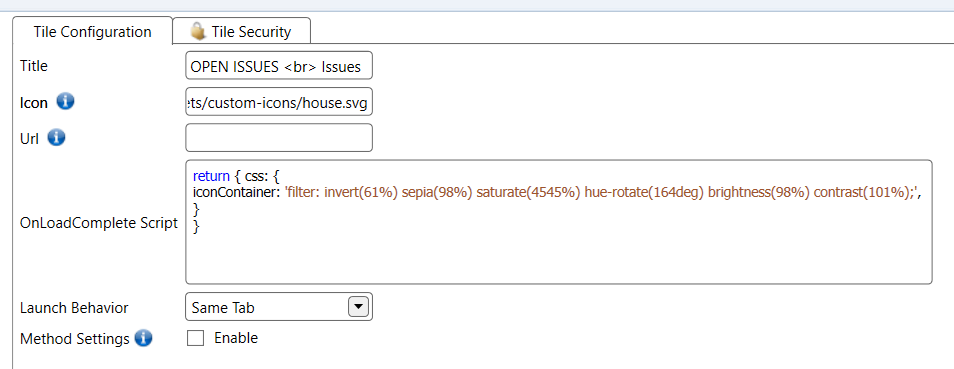
return {
    css: {
        iconContainer:
            'filter: invert(61%) sepia(98%) saturate(4545%) hue-rotate(164deg) brightness(98%) contrast(101%);',
    },
};
Using filters to change icon colors on a Grid Smart Tile is currently not supported.
URL
A Smart Tile can be clickable if a URL is specified. When using SharePoint and Modern Pages you need to use relative URLs to increase the performance. The URL can open in the same tab or in a new tab.
Is Active Support
When the Smart Tiles are used as navigation there is out of the box "is active support". This means that if the URL of the smart tile ends on the current page path name, the active class will be applied. By default this results in an highlighted tile.
If the user is on the http://mywebsite/customer/page1.html?id=1 and there is a smart tile with the relative URL: /customer/page1.html, this tile will have the active class applied. When there is a smart tile with the URL: http://mywebsite/customer/page1.html it will also have the active class applied.

Method Configuration
A Smart Tile can contain information from external systems. Refer to Method Configuration for more information.
Culture
Culture settings are applied on the smart tile configuration. It is possible to choose from the default .NET cultures, these settings will be applied on integer, number, currency and date fields.
The culture settings are only applied on the title field. When used on URL or Icon fields, the "raw" value is returned. If the number 15369 is formatted to 15,369 only the title field will be displayed with this formatter. In the URL it will contain 15369 without any formatter applied..
- Numbers and currencies will always have two decimals after the comma.
- The .NET Offset "z" format specifier is not supported for date formats.