Export to Excel
Although the framework has many features to combine many different data sources into a single solution, sometimes it can be very handy to export a small data set from a portal to a spreadsheet-like document, for one-time actions like doing a little bit of extra analysis on the presented data.
MultiRecord views can be configured to do just that, exporting the listed information with a single click to a CSV or Excel file.
Enabling the Export Feature
To provide the export functionality to portal users, the MultiRecord view must have the Export feature enabled.
Go to the Advanced tab and select the Enable Export checkbox.

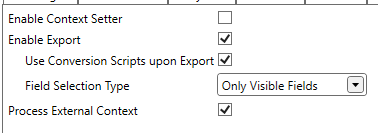
After activation, additional options are shown as in the next screenshot:
ADM Export Icon
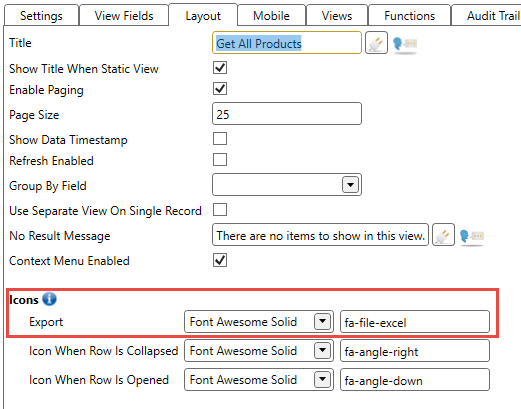
When activating the Export feature, an extra configuration option is added to the Layout tab. That option allows adapting the icon on the Export button on the ADM.
Export to Excel Configuration Options
A couple of configuration options are present to select which fields should be exported and whether any conversion scripts must be applied to the data during export.
Use Conversion Script upon Export Option
The first option shown, is the Use Conversion Scripts upon Export and is enabled by default.

If enabled, for every field that has a conversion script defined, the script is executed and the result is sent to the export. Obviously, data in fields that don't have conversion scripts will be exported as-is without modification.
Field Selection Type Option
Several choices are available to select which fields must be added to the export.
3 possibilities exist:
- All Fields: every field in the view will be exported, even hidden one's.
- Only Visible Fields: only fields that are visible, will be exported.
- Custom Selection: as the name states, the fields to export can be selectively chosen.

Note
The default value of the Field Selection Type listbox depends on the fact whether the view already existed before, or a new
view is added.
In case of an existing view, the default value is set to All Fields to maintain backwards compatibility with previous versions of the framework. When a new view is added, the default value is set to Only Visible Fields.
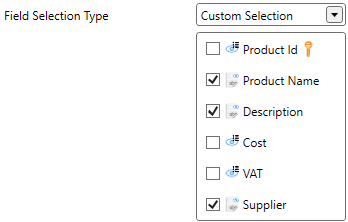
Choosing Custom Selection will display a list of all available view fields, normal and hidden.

Just select any field that needs to be included in the export.
Note
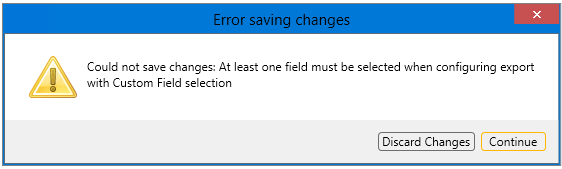
When choosing Custom Selection make sure that at least one field is selected otherwise the WpfGUI application will throw an error message that no fields are available for export.
Column Titles In Other Languages
Views can display field labels in different languages which are configured via language labels. The export feature simply takes over those language label configurations and sets the column titles of the resulting document in the proper translations.
Obviously, this will only work when the end-users are logged on the portal in the proper language.
For more information, read the chapter Configuring Language Labels