Configuring Postman for OAuth 2.0 / OIDC Authorization Code Flow with Ometa Identity Server
This guide provides step-by-step instructions for configuring Postman to initiate an Authorization Code Flow with PKCE (Proof Key for Code Exchange) against the Ometa Identity Server. This setup is ideal for testing secured API endpoints, acquiring access tokens, and leveraging automatic token renewal using refresh tokens (offline_access).
Setup Client in Ometa
To allow Postman to authenticate, you first need to register a client in the Ometa Business Connector.
- In the Ometa Business Connector, click the blue Application Menu (top-left).
- Navigate to Security > Clients.
- Click Create to add a new client with the following parameters:
| Ometa Field | Recommended Value / Setting | Description |
|---|---|---|
| Client Id | your.client |
A unique identifier for the client (do not use spaces). You will use this as the Client ID in Postman. |
| Client Secret | [Automatically Generated] | A secret is generated automatically. Click the green refresh icon to generate a new one if needed. Important: Copy the plaintext secret immediately; once saved, it is hashed and cannot be retrieved. |
| Name | Your Friendly Name |
A descriptive name for the client (e.g., Postman Dev Testing). |
| Grant Type | authorization_code |
Defines the delegation flow. Choose authorization_code. |
| Access Token Lifetime | 3600 |
The lifespan of the access token in seconds (default is 1 hour). Do not increase this for security reasons; use refresh tokens instead. |
| Enabled | true (Checked) |
Check this box to make the client active. Uncheck it to temporarily disable API access. |
| IsAdministrator | false (Unchecked) |
Only check this if the client must explicitly run under Ometa Administrator permissions. Leave unchecked unless strictly required. |
| Redirect Uri's | https://oauth.pstmn.io/v1/callback |
Click the green + icon and add Postman's official redirect URL. This must be an exact match. |
| Claims | None (Optional) | Custom claims can be added here if you need to evaluate specific claims in the Ometa Rule Engine. |
- Do a Recycle of the Ometa Authority Service application pool in IIS.
Step-by-Step Configuration in Postman
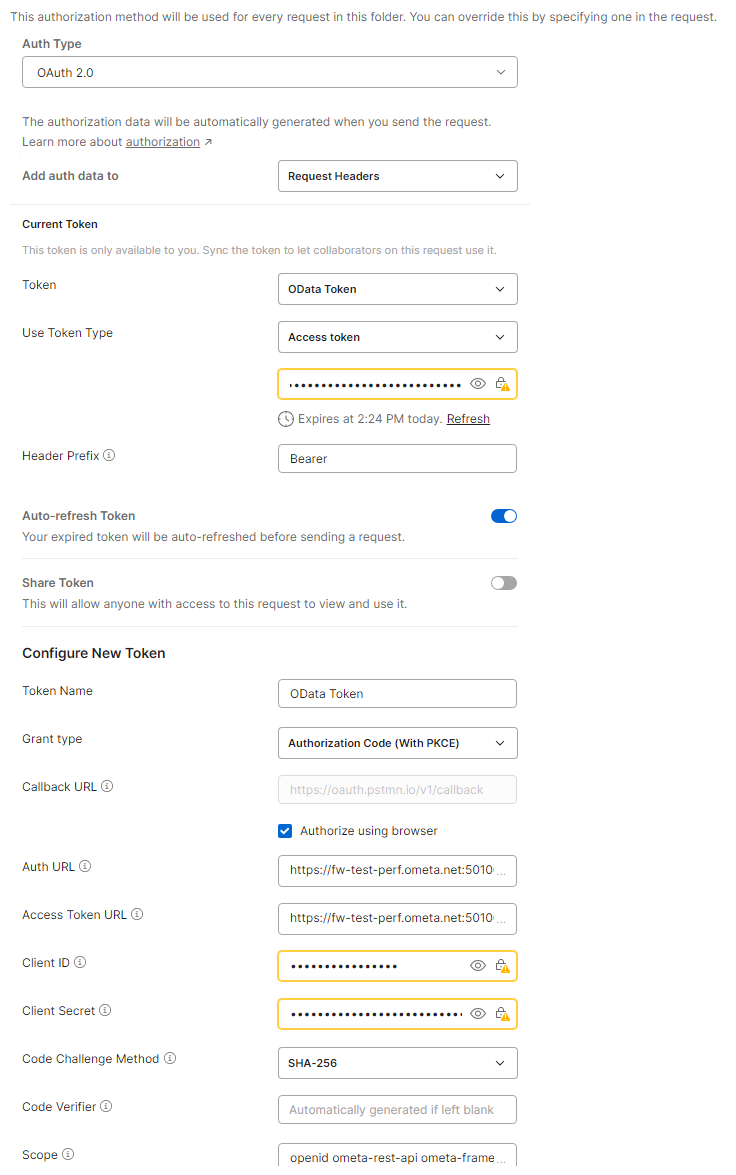
Open Postman, navigate to your request, and select the Authorization tab. Follow the steps below to configure the Authorization details:
Select Authorization Type
- Type:
OAuth 2.0 - Add authorization data to:
Request Headers
Configure New Token
Scroll down to the Configure New Token section and fill out the fields exactly as specified below:
| Postman Field | Recommended Value / Setting | Description |
|---|---|---|
| Token Name | Ometa Demo Token |
A friendly name for your token within Postman. |
| Grant Type | Authorization Code (With PKCE) |
Select the option with PKCE. |
| Callback URL | https://oauth.pstmn.io/v1/callback |
Ensure "Authorize using browser" is checked. |
| Auth URL | https://<url-of-ometa-auth-service>/connect/authorize |
The authorization endpoint of your Ometa Identity Server. |
| Access Token URL | https://<url-of-ometa-auth-service>/connect/token |
The endpoint where Postman exchanges the auth code for tokens. |
| Client ID | ometa.odata.demo |
The Client ID configured in your Ometa backend. |
| Client Secret | <your-client-secret> |
The client secret associated with your Ometa client ID (if configured as confidential). |
| **Code Challenge Method | SHA-256 |
Algorithm used for generating the code challenge. |
| Scope | openid profile email ometa-rest-api ometa-framework-web-api offline_access |
Space-separated list of scopes. openid and offline_access are mandatory for OIDC and refresh tokens. |
| State | Leave Empty | Postman handles state verification automatically. |
| Client Authentication | Send as Basic Auth Header |
Controls how the Client ID and Secret are transmitted during code exchange. |
Retrieving the Tokens
- Click the Get New Access Token button at the bottom of the Postman panel.
- A browser window or a Postman pop-up will open, redirecting you to your Ometa login portal.
- Authenticate with your user credentials.
- Upon successful login, you will be redirected back. Postman will capture the code and automatically exchange it behind the scenes for an Access Token and a Refresh Token.
- Click Proceed and then Use Token in Postman to associate the token with your active API requests.
Troubleshooting & Common Errors
invalid_request
- Reason 1: PKCE parameters (
code_challenge) are missing. Ensure Code Challenge Method is set toSHA-256in Postman. - Reason 2: The client requested a scope (such as
offline_access) that is not configured or allowed for that client in the Ometa database.
unauthorized_client
- Reason: The client
ometa.odata.demois not permitted to use theauthorization_codegrant type. Double-check your Ometa client configuration to ensureAllowedGrantTypesis set toGrantTypes.Code(and not restricted solely toimplicitorclient_credentials).
redirect_uri_mismatch
- Reason: The redirect URI requested by Postman (
https://oauth.pstmn.io/v1/callback) does not match the allowed redirect URIs registered on the client inside Ometa.