Installation requirements
The Baan Connector consists of the following objects:
| Object | Language | Location |
|---|---|---|
| BCSL - Business Connector Slave Listener | C# | TopDir\BC\Bin\Services |
| BCS_BAAN - Business Connector Slave interface program for Baan | C# | TopDir\BC\Bin\Interfaces\BCS_BaaN |
| BaanInterface.o | Baan 3GL | $BSE/ometa/BaanInterface |
BCSL Service
This service is responsible for managing the interface process BCS_BaaN. That interface process will be started with the same account as the service itself, and it is with that account that the interface will logon to the BaaN environment.
Accounts
For the Baan Connector the following accounts are needed:
- (Local) Administrator account for installation and configuration of the Ometa BaaN Connector.
- (Local) BaaN account for running the BCSL Service and working with data in the BaaN environment.
Important
As both the BaaN connector and the BCSL service are installed on the dedicated BaaN server, separate from the framework server, it will be very important to make sure that the BCSL service and the BCS_BaaN process can access the Ometa Framework database for reading in configuration information.
This can be achieved in the appsettings.json through Integrated security or via an SQL User.
If you also log your data to the Ometa Business Activity Monitoring database, then you'll also need to make sure both processes can access that database aswell.
Consult Minimal System Requirements - Framework Services for more information about the requirements.
Communication Flow & Ports
- The Ometa Framework server should be able to communicate with the BaaN server on TCP port 2002 (by default)..
- The BaaN server should be able to communicate with the SQL server that hosts the Ometa databases on TCP port 1433 (default SQL port).
Setup
Minimal Requirements
For a sole BaaN interface installation, the following requirements must be met. If the setup detects any missing software, it will download and install these upon your confirmation.
When no internet connection is available, you'll need to install these prerequisites manually before running the setup.
- Microsoft .NET Framework 4.8 or higher
- Microsoft .NET 10 Runtime and/or Hosting Bundle 10.0.6 or higher, .NET 10 Desktop Runtime 10.0.6 or higher
- Make sure to install the IIS role first before installing .NET 10. Otherwise, you need to add the .NET Core Modules in IIS yourself.
- Visual C++ Redistributable for Visual Studio 2015-2022 (x64)
Warning
Installation of the .NET 10 SDK does not install all required modules to host the service on IIS. Also the SDK provides additional tools that are only needed for software development purposes and have no use on a production environment.
Select BaaN / ERP LN Interface
To install the Ometa BaaN interface on a dedicated BaaN server, you need to run the setup and disable all components except the BaaN interface. By enabling the BaaN interface, the BCSL service is also automatically installed.

BCSL Account
Fill in the service account that must be used to start the BCSL service. This account will also be used to run the BCS_BaaN interface and to log on in the BaaN environment. Make sure this account has the necessary access rights in BaaN.

Note
If this is an 'interface only' installation, you'll notice that you don't have to choose a port number for the BCSL to listen on. This is because the BCSL service will fetch its listener port from the configuration stored in the Ometa Framework database.
If you want to use another port than the BCSL service installed on the Ometa Framework server itself, you'll need to use the special "BcslIdentifier": "<identifier>" in the appsettings.json file.
To do this, read the section below.
Core System
The BCSL and the BCS_BaaN interface both need access to our core database. In this step you will configure the server and account which will be used to access the SQL database. If you choose Windows Trusted Connection, it is important to note that the account of the BCSL service (configured in the previous step) will be used to access the database.
Upon clicking Next, the settings will be tested to see if access is possible.
Important
If you choose Windows Trusted Connection and click Next, the user, who is executing the setup, will be used for the connection test to the SQL database.
If this user is different from the one that will be used for the BCSL service, it is still possible that the BCSL service will fail to start due to logon issues to the database. If this is the case, you will see errors in the Event Viewer and need to take action to make sure the BCSL service can also access the database.

BSE Environment
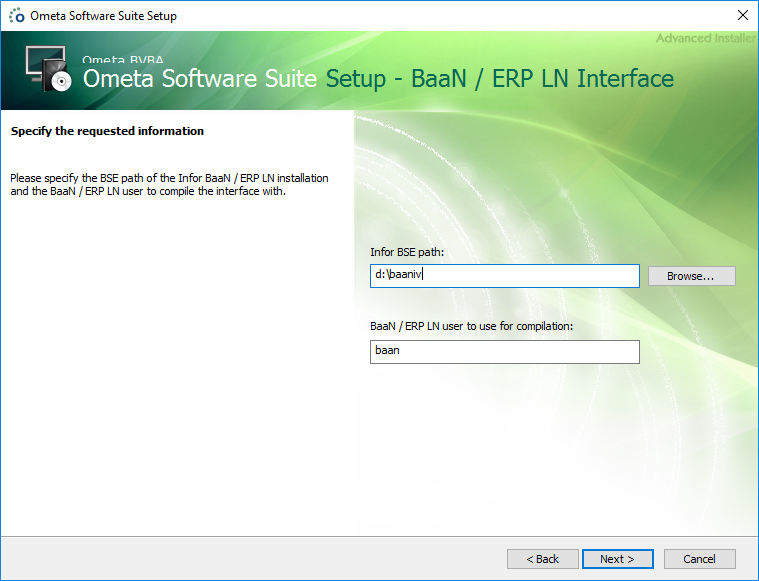
In this step, you'll need to fill in the %BSE% directory of your BaaN installation and the BaaN user which will be used to compile the 3GL interface code. Typically, the BSE path is automatically filled in with the current %BSE% environment variable. If not, choose the correct directory.
After this, click Next until the setup starts to install everything.
Note
Onsite compilation is required because each BaaN installation can have a completely different configuration. We cannot deliver a pre-compiled BaaN interface.
Validate BCSL Startup
If everything went well, the BCSL service should now be started. Check the event viewer for any errors and consult the troubleshooting section below if there are startup errors.
Multiple package combinations (Windows)
Multiple package combinations in Windows are not supported within the same Ometa server.
However, it is possible to set up a different virtual for each package combination with its own BCSL configuration.
Troubleshooting
Compilation Failed
If compilation fails, you'll see an error message at the end of the setup stating to check the event viewer as to why it failed. The setup however will successfully end, and you'll need to manually retry this compilation after taking corrective actions.

Open up a command prompt as an administrator and navigate to the BCS_BaaN interface directory located at TopDir\BC\Bin\Interfaces\BCS_BaaN.
There you'll find two batch files: one named CompileBaan4Interface.bat and one named CompileERPLNInterface.bat. Execute the one applicable to your BaaN environment and see why it fails. In our example, we have a BaaN 4 environment and therefor we execute the CompileBaan4Interface.bat batch file.
You'll notice that we made a typo in our setup and mistakenly typed bann instead of baan for the user to use for compilation.

To correct this, we'll have to edit the CompileBaan4Interface.bat file and alter its contents like this.

Save the batch file and re-execute it in the command prompt. You can ignore any warnings shown on screen.

Environment Variables
You must add a BSE environment variable when the following occurs:
- Testing a BaaN/ERP LN method in the Ometa Business Connector does not return;
- on the BaaN/ERP LN server, there is a bcs_baan.exe process;
- there is no ntbshell.exe running with the account of the service user.

Add the following environment system variable. It is also possible to add this as a user environment variable for the same user as the BCSL Service Account.
| Variable | Value |
|---|---|
| BSE | Path to the BSE directory |
BCSL Service Startup
- Could not find a part of the path...
If the BCSL service starts up the first time, the event viewer will contain any errors encountered during the startup phase.
One of those errors which can occur is
An unexpected error occurred (caught StartProcessing function): Could not find a part of the path C:\Program Files (x86)\Ometa BVBA\Ometa Software Suite\master\TopDir\BC\Bin\Interfaces.
The mentioned path can, of course, be different in your case.

This error occurs when the Ometa installation path of your dedicated BaaN server differs from the one on the Ometa framework server.
To resolve this issue, you'll have to add the special "BcslIdentifier": "<identifier>" to the appsettings.json file located at the root of your Ometa installation.
After this, you'll need to add an extra configuration entry in the dbo.Config table in the Ometa SQL database. See the section below for more details.
- Running on a Separate Port
By default, the BCSL service will listen on the same port as the BCSL service of the Ometa Framework server itself (2002 by default).
If you want the BCSL service of the BaaN server to run on a different port, you'll need to add the special "BcslIdentifier": "<identifier>" to the appsettings.json file located at the root of your Ometa installation.
After this, you'll need to add an extra configuration entry in the dbo.Config table in the Ometa SQL database. See the section below for more details.
Separate BCSL Service Settings in Config Table
As mentioned before, you can have separate settings for a BCSL service on a dedicated server by adding a special setting to the appsettings.json file located at the root of your Ometa installation.
Add the line "BcslIdentifier": "<identifier>" to the appsettings.json file. The name <identifier> is a chosen name. For example:
{
  "BcslIdentifier": "BaaN",

  // Other available settings…
}
Log on to the Ometa Framework database and run the following queries to create a new set of configuration items to be used by the BCSL service on the BaaN Server. Basically, they copy the existing BCSL service configuration to a new set of values.
The following query copies the general BCSL settings. Replace the string
INSERT INTO dbo.Config ([Key], [Value])
SELECT Concat('BCSL[<identifier>]', SUBSTRING([Key], 5, 50)), [Value]
FROM dbo.Config
WHERE [Key] LIKE 'BCSL.%' AND [Key] NOT LIKE 'BCSL.BCS_%';
Next, copy the framework BaaN interface settings. And similarly, replace the string
INSERT INTO dbo.Config ([Key], [Value])
SELECT Concat('BCSL[<identifier>]', SUBSTRING([Key], 5, 50)), [Value]
FROM dbo.Config
WHERE [Key] LIKE 'BCSL.BCS_BaaN%';
Correct some settings according to the installation on the BaaN Server.
First, fix the installation path on the BaaN Server. Again, replace the string
UPDATE dbo.Config
SET [Value] = '%INSTALLROOTBAAN%'
WHERE [Key] = 'BCSL[<identifier>].InstallPath';
And lastly, choose the network port on which the BCSL service will listen on. Replace
UPDATE dbo.Config
SET [Value] = '<port>'
WHERE [Key] = 'BCSL[<identifier>].Port'
Note
Make sure the chosen network port isn't already in use by another process on the BaaN Server. Open up a command prompt and run the command netstat -a to check for all used ports.