When to Use a Date Time Field
A date time field is used when the field in the ERP system contains a valid date format.
Here are some examples of valid date formats with the same example of 27 July 2020 at 8 o’clock 28 minutes.
- 2020-07-27T08:28:00+00:00
- 2020-07-27T08:28:00Z
- 2020-07-27
- 08:28:00
- 27/07/2020
- ...
When the date(time) field comes to our framework, it will be converted to a .NET datetime object. If it cannot be converted, the framework returns an error.
Configure a Date and/or Time Picker
In this section you will learn how to configure a date, time or date and time picker. First you will get information about the object field settings. The second part describes the view field settings.
Object Field
If you create a new date time object field or method field, it is possible to change some type specific properties. Of course there are also a lot of generic properties like unique, external name or default value. Refer to common properties for more information about this topic.
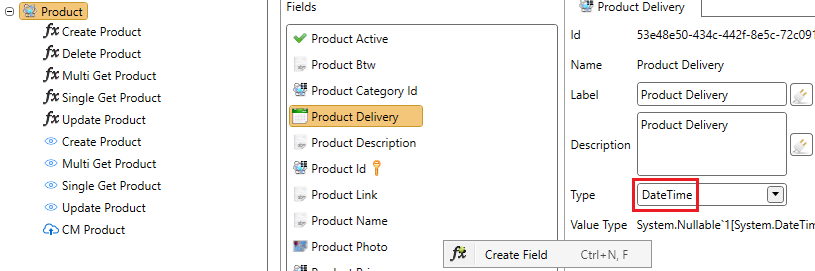
- Click on the object.
- Create a new field.
- Change the type from Text to DateTime.
Kind When Unspecified
This property will specify the time zone when the system is unable to detect the time zone of the value.

There are 2 different choices for this property:
- UTC
- Local
Also note that when selecting one of these options, the program assumes the requested dates are in this time zone.
Interface Formatter
See Interface formatter for more information about this topic.
Overview
Below is an overview how the framework will display dates from various formats received from the interface. The difference between each scenario is highlighted.
| Ometa Field Type | Raw value from interface | Field Culture Format | DateTime Kind When Unspecified | Value to client | Display in ADM (User's Local Time +01:00) |
|---|---|---|---|---|---|
| DateTime | 2014-01-08 10:08:31.063 | English (M/d/yyyy h:mm tt) | Local | 2014-01-08T10:08:31.0630000+01:00 | 1/8/2014 10:08 AM |
| DateTime | 2014-01-08 10:08:31.063 | English (M/d/yyyy h:mm tt) | Utc | 2014-01-08T11:08:31.0630000+01:00 | 1/8/2014 11:08 AM |
| DateTimeOffset | 2014-01-08 10:08:31.063 | English (M/d/yyyy h:mm tt) | / | 2014-01-08T10:08:31.0630000+01:00 | 1/8/2014 10:08 AM |
| DateTime | 2014-01-08 10:08:31.0630000 +00:00 | English (M/d/yyyy h:mm tt) | Local | 2014-01-08T11:08:31.0630000+01:00 | 1/8/2014 11:08 AM |
| DateTime | 2014-01-08 10:08:31.0630000 +00:00 | English (M/d/yyyy h:mm tt) | Utc | 2014-01-08T11:08:31.0630000+01:00 | 1/8/2014 11:08 AM |
| DateTimeOffset | 2014-01-08 10:08:31.0630000 +00:00 | English (M/d/yyyy h:mm tt) | / | 2014-01-08T10:08:31.0630000+00:00 | 1/8/2014 11:08 AM |
| DateTime | 2014-01-08 05:08:31.0630000 -05:00 | English (M/d/yyyy h:mm tt) | Local | 2014-01-08T11:08:31.0630000+01:00 | 1/8/2014 11:08 AM |
| DateTime | 2014-01-08 05:08:31.0630000 -05:00 | English (M/d/yyyy h:mm tt) | Utc | 2014-01-08T11:08:31.0630000+01:00 | 1/8/2014 11:08 AM |
| DateTimeOffset | 2014-01-08 05:08:31.0630000 -05:00 | English (M/d/yyyy h:mm tt) | / | 2014-01-08T05:08:31.0630000-05:00 | 1/8/2014 11:08 AM |
Keep in mind that if the value from the database is not interpreted correctly with the correct Field Type or DateTime Kind When Unspecified, users will see the wrong time in ADM. While the date and time is accurately shown for the local time zone, it can be very confusing when 'Show Time' is disabled on the view with dates around midnight. Since these dates will roll over to the next or previous day for some users depending on the timezones.
If you don't receive any time information from the method, consider using the Date Only option described below.
Date Only
To alleviate the headache of timezones crossing the day boundary for some users in different timezones (where only the day is relevant), use the 'Date Only' option. This will strip out the time and timezone section from the interface, and return the date as is.
See the table below for a reference on the result of various scenarios. All dates are in yyyy/MM/dd H:mm format. The Ometa server timezone for this reference was UTC+01:00.
| Raw value from interface | Ometa Field Type | UTC-10:00 Hawaii (Default) | UTC+01:00 Brussels (Default) | UTC+08:00 Beijing (Default) | UTC+01:00 Brussels (Date Only) | UTC-10:00 Hawaii (Date Only) | UTC+08:00 Beijing (Date Only) |
|---|---|---|---|---|---|---|---|
| 2014-01-08 | DateTime | 2014/01/07 13:00 | 2014/01/08 0:00 | 2014/01/08 7:00 | 2014/01/08 0:00 | 2014/01/08 0:00 | 2014/01/08 0:00 |
| 2014-01-08 | DateTimeOffset | 2014/01/07 13:00 | 2014/01/08 0:00 | 2014/01/08 7:00 | 2014/01/08 0:00 | 2014/01/08 0:00 | 2014/01/08 0:00 |
| 2014-01-08 23:35:31.063 | DateTime | 2014/01/08 12:35 | 2014/01/08 23:35 | 2014/01/09 6:35 | 2014/01/08 0:00 | 2014/01/08 0:00 | 2014/01/08 0:00 |
| 2014-01-08 23:35:31.063 | DateTimeOffset | 2014/01/08 12:35 | 2014/01/08 23:35 | 2014/01/09 6:35 | 2014/01/08 0:00 | 2014/01/08 0:00 | 2014/01/08 0:00 |
| 2014-01-08 00:35:31.063 | DateTime | 2014/01/07 13:35 | 2014/01/08 0:35 | 2014/01/08 7:35 | 2014/01/08 0:00 | 2014/01/08 0:00 | 2014/01/08 0:00 |
| 2014-01-08 00:35:31.063 | DateTimeOffset | 2014/01/07 13:35 | 2014/01/08 0:35 | 2014/01/08 7:35 | 2014/01/08 0:00 | 2014/01/08 0:00 | 2014/01/08 0:00 |
| 2014-01-08 23:35:31.0630000 | DateTime | 2014/01/08 12:35 | 2014/01/08 23:35 | 2014/01/09 6:35 | 2014/01/08 0:00 | 2014/01/08 0:00 | 2014/01/08 0:00 |
| 2014-01-08 23:35:31.0630000 | DateTimeOffset | 2014/01/08 12:35 | 2014/01/08 23:35 | 2014/01/09 6:35 | 2014/01/08 0:00 | 2014/01/08 0:00 | 2014/01/08 0:00 |
| 2014-01-08 00:35:31.0630000 | DateTime | 2014/01/07 13:35 | 2014/01/08 0:35 | 2014/01/08 7:35 | 2014/01/08 0:00 | 2014/01/08 0:00 | 2014/01/08 0:00 |
| 2014-01-08 00:35:31.0630000 | DateTimeOffset | 2014/01/07 13:35 | 2014/01/08 0:35 | 2014/01/08 7:35 | 2014/01/08 0:00 | 2014/01/08 0:00 | 2014/01/08 0:00 |
| 2014-01-08 23:35:31.0630000 +00:00 | DateTime | 2014/01/08 13:35 | 2014/01/09 0:35 | 2014/01/09 7:35 | 2014/01/08 0:00 | 2014/01/08 0:00 | 2014/01/08 0:00 |
| 2014-01-08 23:35:31.0630000 +00:00 | DateTimeOffset | 2014/01/08 13:35 | 2014/01/09 0:35 | 2014/01/09 7:35 | 2014/01/08 0:00 | 2014/01/08 0:00 | 2014/01/08 0:00 |
| 2014-01-08 00:35:31.0630000 +00:00 | DateTime | 2014/01/07 14:35 | 2014/01/08 1:35 | 2014/01/08 8:35 | 2014/01/08 0:00 | 2014/01/08 0:00 | 2014/01/08 0:00 |
| 2014-01-08 00:35:31.0630000 +00:00 | DateTimeOffset | 2014/01/07 14:35 | 2014/01/08 1:35 | 2014/01/08 8:35 | 2014/01/08 0:00 | 2014/01/08 0:00 | 2014/01/08 0:00 |
| 2014-01-08 18:35:31.0630000 -05:00 | DateTime | 2014/01/08 13:35 | 2014/01/09 0:35 | 2014/01/09 7:35 | 2014/01/08 0:00 | 2014/01/08 0:00 | 2014/01/08 0:00 |
| 2014-01-08 18:35:31.0630000 -05:00 | DateTimeOffset | 2014/01/08 13:35 | 2014/01/09 0:35 | 2014/01/09 7:35 | 2014/01/08 0:00 | 2014/01/08 0:00 | 2014/01/08 0:00 |
| 2014-01-07 19:35:31.0630000 -05:00 | DateTime | 2014/01/07 14:35 | 2014/01/08 1:35 | 2014/01/08 8:35 | 2014/01/07 0:00 | 2014/01/07 0:00 | 2014/01/07 0:00 |
| 2014-01-07 19:35:31.0630000 -05:00 | DateTimeOffset | 2014/01/07 14:35 | 2014/01/08 1:35 | 2014/01/08 8:35 | 2014/01/07 0:00 | 2014/01/07 0:00 | 2014/01/07 0:00 |
| 2014-01-09 07:35:31.0630000 +08:00 | DateTime | 2014/01/08 13:35 | 2014/01/09 0:35 | 2014/01/09 7:35 | 2014/01/09 0:00 | 2014/01/09 0:00 | 2014/01/09 0:00 |
| 2014-01-09 07:35:31.0630000 +08:00 | DateTimeOffset | 2014/01/08 13:35 | 2014/01/09 0:35 | 2014/01/09 7:35 | 2014/01/09 0:00 | 2014/01/09 0:00 | 2014/01/09 0:00 |
| 2014-01-08 08:35:31.0630000 +08:00 | DateTime | 2014/01/07 14:35 | 2014/01/08 1:35 | 2014/01/08 8:35 | 2014/01/08 0:00 | 2014/01/08 0:00 | 2014/01/08 0:00 |
| 2014-01-08 08:35:31.0630000 +08:00 | DateTimeOffset | 2014/01/07 14:35 | 2014/01/08 1:35 | 2014/01/08 8:35 | 2014/01/08 0:00 | 2014/01/08 0:00 | 2014/01/08 0:00 |
General recommendations
- If the interface returns timezone information, use the Ometa field type
DateTimeOffset. - If the interface doesn't return timezone information, specify the
DateTime Kind When Unspecified. - If the time is completely irrelevant, use
Date Onlyor use aTextfield.
The Date Only setting is not linked to the Show Time setting on view fields, this is done on purpose to maintain backwards compatibility. The Show Time option is recommended when using Date Only, since every time will be 00:00:00 regardless.
Use Case for 'Date Only'
The primary use case for fixing a date across all timezones is when the calendar date itself is the critical piece of information, and timezone conversions would be confusing or incorrect. This applies to concepts that are not tied to a specific, universal moment in time.
Good examples include:
- Birthdays: A person's birthday is on a specific date. If you were born on April 10th, you celebrate it on April 10th whether you are in Brussels or Hawaii. If a system converted this date based on timezone, it might incorrectly display April 9th to a user in a different part of the world, which is not the intended meaning.
- Holidays: A public holiday like New Year's Day occurs on January 1st everywhere, even though it begins at different times globally.
- Contractual or Legal Dates: The effective date or expiration date of a contract is often legally defined as a specific calendar day (e.g., "This agreement is valid until December 31, 2025"). Using
Date Onlyensures that all parties see the exact same date, preventing ambiguity.
By using the Date Only option for these scenarios, you ensure that the intended date is always displayed, regardless of the user's location or timezone settings.
Date Pickers
When used in date pickers, the time and timezone information is stripped away before it is sent to the external interface. See the table below for a reference:
| Selected Date In Picker | Ometa Field Type | Date Only | UTC-10:00 Hawaii | UTC+01:00 Brussels | UTC+08:00 Beijing |
|---|---|---|---|---|---|
| 20-3-2025 | DateTime | [ ] | 20-3-2025 11:00:00 | 20-3-2025 00:00:00 | 19-3-2025 17:00:00 |
| 20-3-2025 | DateTime | [x] | 20-3-2025 | 20-3-2025 | 20-3-2025 |
| 20-3-2025 | DateTimeOffset | [ ] | 20-3-2025 00:00:00 -10:00 | 20-3-2025 00:00:00 +01:00 | 20-3-2025 00:00:00 +08:00 |
| 20-3-2025 | DateTimeOffset | [x] | 20-3-2025 | 20-3-2025 | 20-3-2025 |
The dates in each timezone represent how the interface will receive the data. The Ometa server timezone for this reference was UTC+01:00.
Note the difference in format, verify the interface script is compatible with this format.
Time Only
The Time only setting will cause the date (year / month / day), and timezone to be ignored. The date in these cases should be hidden to end users, as it will always be 1900-01-01.
See the table below for a reference. All dates are in yyyy/MM/dd H:mm format. The Ometa server timezone for this reference was UTC+01:00.
| Raw value from interface | Ometa Field Type | UTC-10:00 Hawaii (Default) | UTC+01:00 Brussels (Default) | UTC+08:00 Beijing (Default) | Any timezone (Time Only) |
|---|---|---|---|---|---|
| 2014-01-08 | DateTime | 2014/01/07 13:00 | 2014/01/08 0:00 | 2014/01/08 7:00 | 1900/01/01 0:00 |
| 2014-01-08 | DateTimeOffset | 2014/01/07 13:00 | 2014/01/08 0:00 | 2014/01/08 7:00 | 1900/01/01 0:00 |
| 2014-01-08 23:35:31.063 | DateTime | 2014/01/08 12:35 | 2014/01/08 23:35 | 2014/01/09 6:35 | 1900/01/01 23:35 |
| 2014-01-08 23:35:31.063 | DateTimeOffset | 2014/01/08 12:35 | 2014/01/08 23:35 | 2014/01/09 6:35 | 1900/01/01 23:35 |
| 2014-01-08 00:35:31.063 | DateTime | 2014/01/07 13:35 | 2014/01/08 0:35 | 2014/01/08 7:35 | 1900/01/01 0:35 |
| 2014-01-08 00:35:31.063 | DateTimeOffset | 2014/01/07 13:35 | 2014/01/08 0:35 | 2014/01/08 7:35 | 1900/01/01 0:35 |
| 2014-01-08 23:35:31.0630000 | DateTime | 2014/01/08 12:35 | 2014/01/08 23:35 | 2014/01/09 6:35 | 1900/01/01 23:35 |
| 2014-01-08 23:35:31.0630000 | DateTimeOffset | 2014/01/08 12:35 | 2014/01/08 23:35 | 2014/01/09 6:35 | 1900/01/01 23:35 |
| 2014-01-08 00:35:31.0630000 | DateTime | 2014/01/07 13:35 | 2014/01/08 0:35 | 2014/01/08 7:35 | 1900/01/01 0:35 |
| 2014-01-08 00:35:31.0630000 | DateTimeOffset | 2014/01/07 13:35 | 2014/01/08 0:35 | 2014/01/08 7:35 | 1900/01/01 0:35 |
| 2014-01-08 23:35:31.0630000 +00:00 | DateTime | 2014/01/08 13:35 | 2014/01/09 0:35 | 2014/01/09 7:35 | 1900/01/01 23:35 |
| 2014-01-08 23:35:31.0630000 +00:00 | DateTimeOffset | 2014/01/08 13:35 | 2014/01/09 0:35 | 2014/01/09 7:35 | 1900/01/01 23:35 |
| 2014-01-08 00:35:31.0630000 +00:00 | DateTime | 2014/01/07 14:35 | 2014/01/08 1:35 | 2014/01/08 8:35 | 1900/01/01 0:35 |
| 2014-01-08 00:35:31.0630000 +00:00 | DateTimeOffset | 2014/01/07 14:35 | 2014/01/08 1:35 | 2014/01/08 8:35 | 1900/01/01 0:35 |
| 2014-01-08 18:35:31.0630000 -05:00 | DateTime | 2014/01/08 13:35 | 2014/01/09 0:35 | 2014/01/09 7:35 | 1900/01/01 18:35 |
| 2014-01-08 18:35:31.0630000 -05:00 | DateTimeOffset | 2014/01/08 13:35 | 2014/01/09 0:35 | 2014/01/09 7:35 | 1900/01/01 18:35 |
| 2014-01-07 19:35:31.0630000 -05:00 | DateTime | 2014/01/07 14:35 | 2014/01/08 1:35 | 2014/01/08 8:35 | 1900/01/01 19:35 |
| 2014-01-07 19:35:31.0630000 -05:00 | DateTimeOffset | 2014/01/07 14:35 | 2014/01/08 1:35 | 2014/01/08 8:35 | 1900/01/01 19:35 |
| 2014-01-09 07:35:31.0630000 +08:00 | DateTime | 2014/01/08 13:35 | 2014/01/09 0:35 | 2014/01/09 7:35 | 1900/01/01 07:35 |
| 2014-01-09 07:35:31.0630000 +08:00 | DateTimeOffset | 2014/01/08 13:35 | 2014/01/09 0:35 | 2014/01/09 7:35 | 1900/01/01 07:35 |
| 2014-01-08 08:35:31.0630000 +08:00 | DateTime | 2014/01/07 14:35 | 2014/01/08 1:35 | 2014/01/08 8:35 | 1900/01/01 08:35 |
| 2014-01-08 08:35:31.0630000 +08:00 | DateTimeOffset | 2014/01/07 14:35 | 2014/01/08 1:35 | 2014/01/08 8:35 | 1900/01/01 08:35 |
View Field
A date and time field is displayed in the ADM by a date and/or time control. Depending on the view type there are different properties. The figure below shows an example of what the date picker looks like.

Time picker
As you can see below, the time picker also has an option called Time Selection Interval this is the interval between minutes you can select. This option has an impact on how the time picker is displayed.

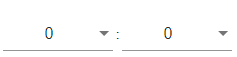
Time Selection Interval value is lower than 15:
As shown below, there will be two different time pickers. The first one to select the hour and the second one to select the minutes.
Time Selection Interval value is 15 or higher:
The two time pickers will be merged into one single time picker. You can also see that the interval in minutes between each option is 15. This is because the value of Time Selection Interval is exactly 15 in this example .

Multi Record View
| Property | Description |
|---|---|
| Show Date | If checked the date is displayed in the multi record view. |
| Show Time | If checked the time is displayed in the multi record view. |
| Formatter Definition | Refer to View formatter. |
Single Record View
| Property | Description |
|---|---|
| Show Date | If checked the date is displayed in the single record view. |
| Show Time | If checked the time is displayed in the single record view. |
| Formatter | Refer to View formatter. |
| Events | JavaScript events used to interact with the date and/or time picker. |
Create and Update View
| Property | Description |
|---|---|
| Read Only | If checked the control could not be changed by the user. |
| Use Data Source | Refer to Data Sources. |
| Mask | Refer to rules and literals. When a mask is used, the layout of the control will be changed to a Kendo masked textbox. |
| Show Date | If checked a date picker is displayed. |
| Show Time | If checked a time picker is displayed. |
| Time Selection Interval | Time interval in minutes between two possible values. If the property is set to 15, you will get the following result in the default English culture: 00:00 00:15 00:30 00:45 01:00 |
| Events | JavaScript events used to interact with the date and/or time picker. |
| Formatter | Refer to View formatter. |
Troubleshooting
Incorrect Date Is displayed
Problem
I see a date in the ADM displayed as 16-05-2023, my colleague (located in the same time zone) sees it as 17-05-2023.
Cause
The Intl.DateTimeFormat().resolvedOptions().timeZone property returns the time zone information of the device that is running the JavaScript code.
The output of this property can be influenced by the device's settings, including the time zone and daylight saving time settings.
If the time zone or daylight saving time settings on a device are incorrect, the output of the Intl.DateTimeFormat().resolvedOptions().timeZone property can also be incorrect.
To ensure that the correct time zone information is returned, it is important to check and adjust the time zone and daylight saving time settings on the device, as well as making sure the correct time zone is set in the operating system.
Resolution
In the Windows Date & Time settings, make sure the Time zone is set correctly and Adjust for daylight saving time automatically is toggled on.
We have seen that you explicitly need to change the Time zone dropdown and change it back, only then, the date was displayed correctly in the web browser.
