Connect to Local Network Popup
❔ What’s Happening
When you open an internet page with one of our framework components in a browser, you may see a message like this:
“This site wants to look for and connect to any device on your local network.”
This message can look confusing, but it’s expected and completely safe when it comes from a site using our framework components like ADM and/or CM.
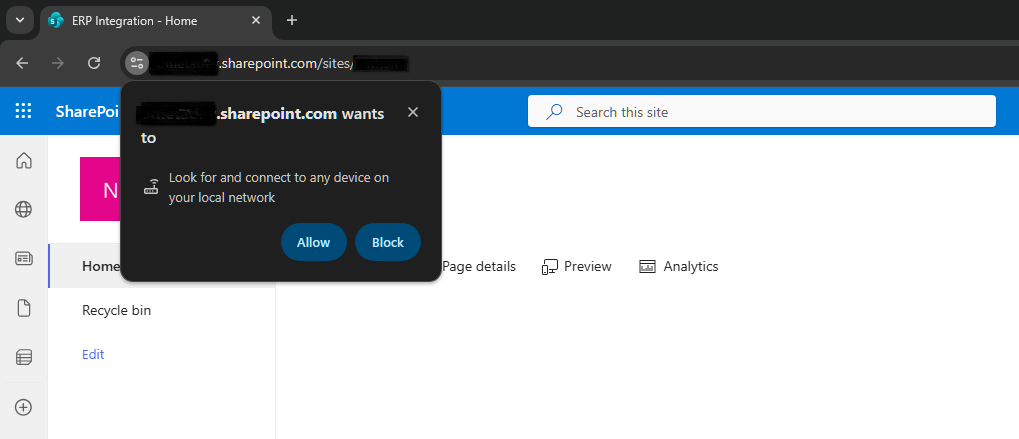
Example of the prompt you may see when opening the site in Chrome.
Why The Browser Shows This Message
Modern browsers, like Google Chrome and Microsoft Edge, are designed to protect you from websites that might try to connect to devices in your home or office network — for example, printers, scanners, or internal tools.
Because our framework components communicate with local REST services running on your company network, the browser asks for confirmation the first time. It’s simply checking that you trust this site communicating with your local network.
Why You Can Safely Allow It
Our components need to talk to local REST services in order to work properly.
For example, this connection allows our website components to:
- Read or send data to software running elsewhere on your network (e.g.: SAP, CRM, a database, ...)
- Perform secure operations that are not possible directly through the internet
This communication stays entirely between your computer and the REST services — nothing is exposed publicly.
🗸 What You Need to Do
How IT Can Apply the Chrome Policy to Avoid the Prompt
If your organization manages devices with Chrome, IT can pre-approve sites so users never see the “Local Network Access” prompt. This is done using a Chrome Group Policy called:
LocalNetworkAccessAllowedForUrls
What This Policy Does
- Allows specific public websites (like the company sites) to access local network services
- Bypasses the one-time prompt in Chrome for end-users
- Only works on managed devices (Windows, macOS, Linux, ChromeOS)
How to Configure via Windows Group Policy
- Follow the article about Chrome browser policies and install the ADMX template (direct link)
- Navigate to Start > Run: gpedit.msc. (Or run gpedit.msc in your terminal)
- Find Allow sites to make requests to local network endpoints.
- Enable the policy and add the sites containing our framework components, for example:
https://www.company.net,https://portal.company.net,https://company.sharepoint.com, ... - Once the policy is pushed to the client, users will no longer see the prompt for those sites

Example of the group policy editor
How to Configure via the Register (also for Microsoft Edge)
- For Chrome: HKEY_LOCAL_MACHINE\SOFTWARE\Policies\Google\Chrome\LocalNetworkAccessAllowedForUrls
- For Edge: HKEY_LOCAL_MACHINE\SOFTWARE\Policies\Microsoft\Edge\LocalNetworkAccessAllowedForUrls
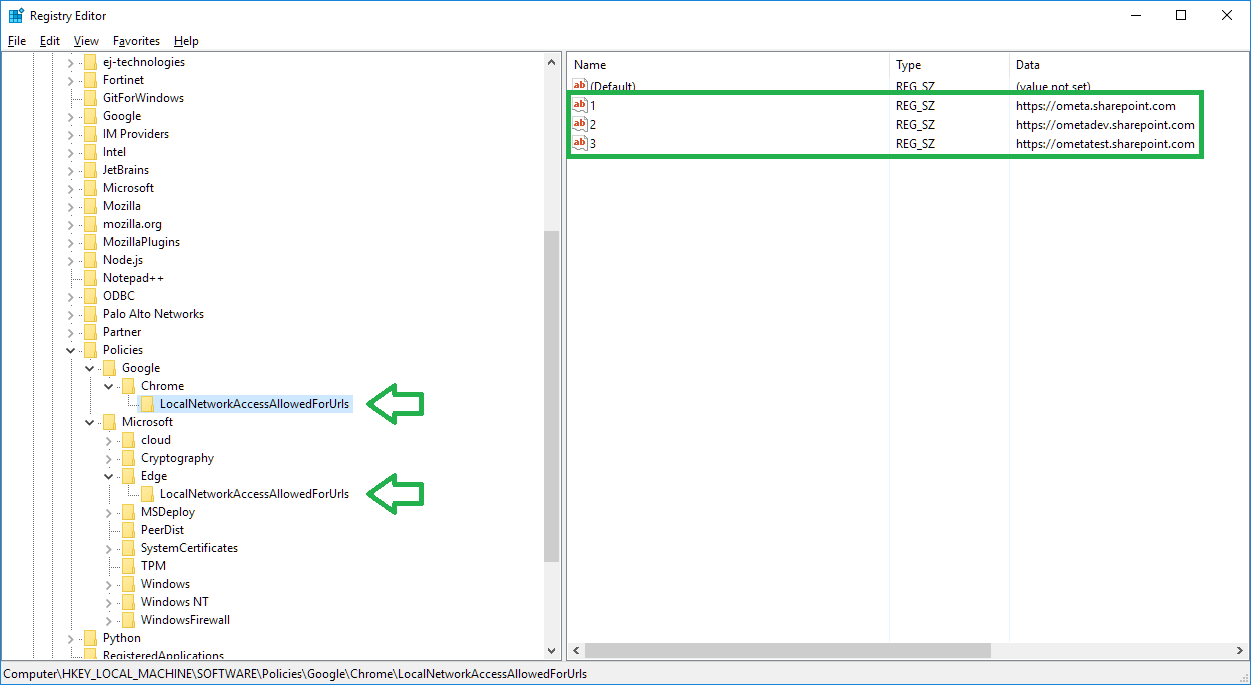
Example of the registry setting for Chrome and Edge
⚠️ Notes for IT
- Only whitelist trusted websites containing our framework components
- Don't use wildcards like * — browsers will ignore them for private network access

 in the Chrome address bar.
🔐 Important Notes
- This permission only allows communication between your computer and the local network
- Your data and credentials remain protected
- You should never allow local access for unknown or untrusted websites
More information about this change can be found in the W3C Community Group Report and in chrome's developer blog.