Generic REST Service
The Generic REST service is used by the latest ADM components and the older Kendo ADM. It also contains the OData services for executing methods. Since this service is also part of the new security layers, it needs to be configured manually. It is no longer possible to use this service without a valid SSL certificate.
Minimum Requirements
Login to the server where you installed the Generic REST Service and ensure that this server meets the minimum system requirements of an Ometa Framework server.
Application Pool and IIS Site
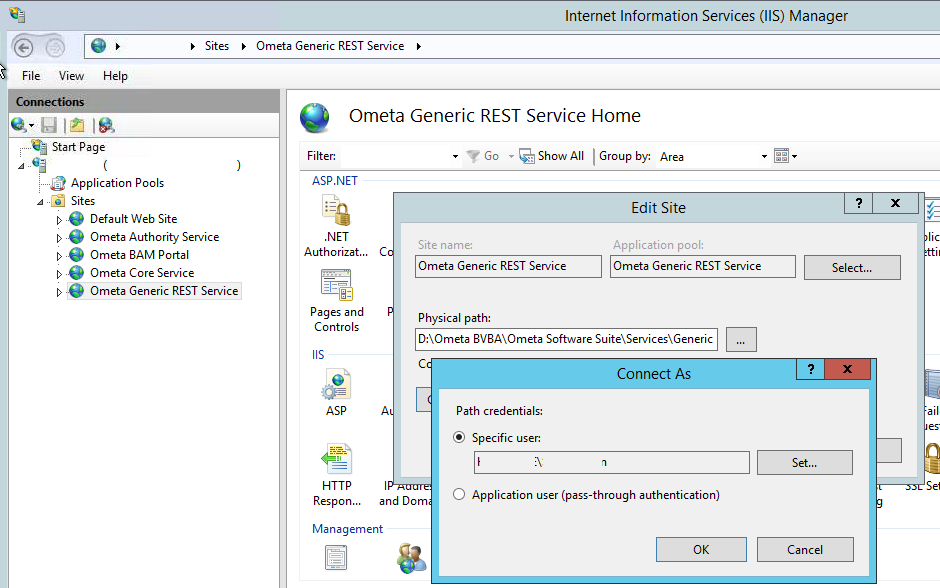
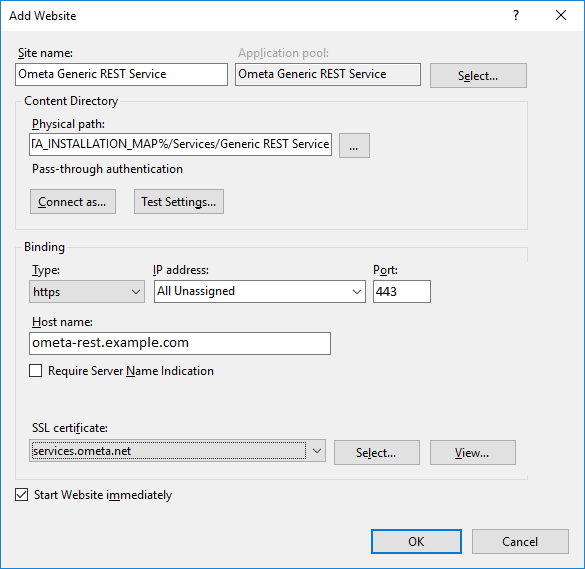
- Ensure an application pool and an IIS site mapped to the %OMETA_INSTALL_ROOT%\Ometa Software Suite\Services\Generic REST Service directory.
- Ensure an HTTPS binding to the site with a port of your choice, a valid hostname and ensure that a valid SSL certificate is chosen.
Warning
The port of Generic REST Service Url in the database must match the port in IIS. If the ports don't match, update Generic REST Service Url of table dbo.Config from the Ometa Business Connector database (default name is Ometa Business Connector) to the correct port.
Service Settings
There are some required settings you need to configure in the general appsettings.json file of the framework. You can find this file in the %OMETA_INSTALL_ROOT%\Ometa Software Suite directory.
Note
In case of an upgrade, an appsettings.json file may be present in the %OMETA_INSTALL_ROOT%\Ometa Software Suite\Services\Generic REST Service directory. We advice to move all settings from that file to the general appsettings.json file in %OMETA_INSTALL_ROOT%\Ometa Software Suite as that will make configuring the framework easier to manage. The Generic REST service is equipped to search for the general settings file.
{
  "AppSettings": {
    "EnableCompression": true,
    "CoreServiceUrl": "https://ometa-core.example.com",
    "UseUnsafeUserContext": false,
    "SharePointAuthentications": [
        {
            "Source": "http://yourintranet.yourdomain.com",
            "IsCloudEnvironment": false,
            "Domain": "yourdomain",
            "Username": "admin",
            "Password": "",
            "ClientId": "",
            "ClientSecret": ""
        },
        {
            "Source": "https://yourcompany.sharepoint.com",
            "IsCloudEnvironment": true,
            "Domain": "",
            "Username": "admin@yourdomain.onmicrosoft.com",
            "Password": "",
            "ClientId": "",
            "ClientSecret": ""
        }
    ],
    "SharePointRewriteUrls": [
        {
            "FromUrl": "https://yourcompany.sharepoint.com",
            "ToUrl": "https://yourcompany-internal.sharepoint.com"
        }
    ]
  },
  "ConnectionStrings": {
    "OmetaFrameworkDatabase": "Data Source=dbserver.ometa.net;database=dcs database;trusted_connection=yes;TrustServerCertificate=True;"
  }
}
| Setting Name | Description |
|---|---|
| EnableCompression [true, false] | Applies compression to the response data of the service. This should be true for production environments. |
| CoreServiceUrl | The URL of the Ometa Core Service. The Core Service will be used to discover other settings for the this service. |
Database Connection String
The connection information to the Ometa Framework and Ometa Dynamic Case System databases must be configured correctly.
Please consult the article Check Database Connection Configuration for more information.
Application Pool Identity
The application pool account of the Ometa Generic REST Service must have read and write access to its own WorkDir directory.
Test the Generic REST Service
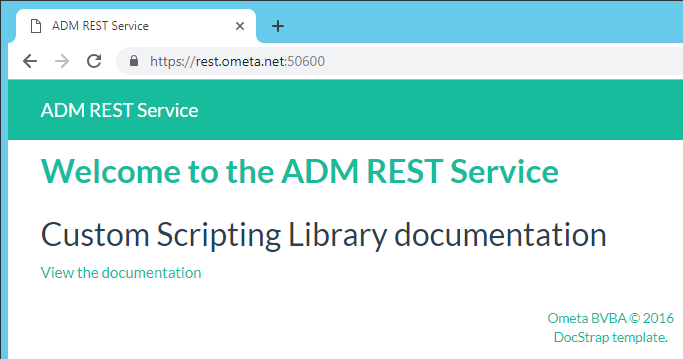
Test the Generic REST Service by navigating to https://your-site-binding:port. This should succeed without a security warning from the browser.
Routing Multiple Service Instances
In some more advanced use cases where the Ometa framework has different data sources that cannot be accessed by the same Core service (like internal active directory), or providing data on multiple SharePoint environments, there can be a need to use multiple Core services originating from one framework installation.
This configuration is possible in the database ConfigDiscovery table. A new entry in this table can be created with the url of another Core service, generic REST or authority service.
Tip
Empty configurations will be ignored and use the default value from the Config table.
By creating and linking this entry to a ConditionSet, different conditions can be used to select a different service instance.
The following fields can be used to define the conditions on the discovery:
| Name | FieldType | Description |
|---|---|---|
| Request.IsExternalUser | YesNo | Indicates if the user is from outside the organisation. This field can only be true on SharePoint Online environments external users. For example, this field can never be true when connecting the Ometa Business Connector. |
| Request.Url | Text | The target url of the request. This is the Ometa authority service itself. |
| Request.IpAddressV4 | Text | The IP-address v4 of the user. |
| Request.IpAddressV6 | Text | The IP-address v6 of the user. |
| Request.UserAgent | Text | The user agent of the user. |
| Request.Host | Text | The host of the url. |
| Request.Referer | Text | The original address the request came from. This can be used to determine the SharePoint environment. |
| Request.AcceptLanguage | Text | The languages client can understand, and which variant is preferred. |
Tip
The available fields and their values can be validated in the logging of the core service upon discovery (either manual or by an ADM). The minimum log level for this is 'Information'.
Troubleshooting
If anything goes wrong when testing the service and you get an error page, your best bet is to check the event viewer.
Tip
Most common causes for startup errors:
- Invalid Core Service URL
- Certificate errors (invalid)
- Wrong value for UseUnsafeUserContext in appsettings.json
- Invalid json data in appsettings.json
401 - Unauthorised
If navigating to the Generic REST Service gives a 401 - Unauthorised error code, this is probably because the default anonymous user does not have access to the files of the website.
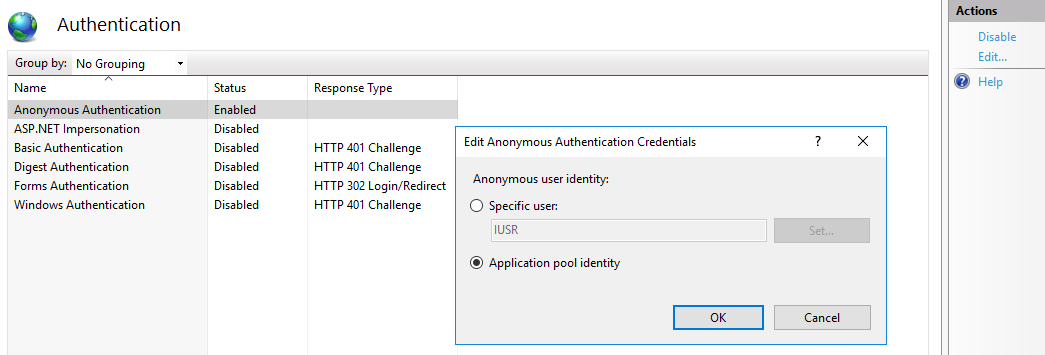
- In IIS click on the related site and click on Authentication.
- Make sure Anonymous access is enabled.
- If enabled and the issue still occurs, click on Edit... in the actions panel on the right.
Make sure that the selected account has read, write and folder creation permissions.
If the error still occurs, try setting the Connect As acccount by updating the Basic Settings of the site. This will ensure that the folder structure of the site is accessed by the selected account. Make sure that the account has read, write and folder creation permissions.