Certificate Rotation
Proper certificate management and rotation is needed to keep access from the framework to third-party system secure. In this article we provide some pointers and hints that can be used to assist with checking the validity of certificates and how to change them when needed.
Check Expiration Date and Certificate Name
To know when a certificate is about to expire or which will expire soon, or the name of a specific certificate, use the following methods to consult the Windows certificate store.
All examples given here look in the Personal folder of the computer certificate store: Cert:\LocalMachine\My. Refer to another location if necessary, like the Personal folder in the user certificate store (Cert:\CurrentUser\My).
Using PowerShell
Listing all certificates with name and expiration date:
Get-ChildItem -Path Cert:\LocalMachine\My | Select-Object Subject, NotAfter
Output:
PS C:\> Get-ChildItem -Path Cert:\LocalMachine\My | Select-Object Subject, NotAfter

Subject                                       NotAfter
-------                                       --------
CN=xxxxx.ometa.net                            11/09/2026 13:02:52
CN=localhost                                  27/04/2027 2:00:00
CN=Ometa Certificate, C=BE, O=Ometa BV        5/10/2033 0:00:00
C=Belgium, O=Ometa, DC=xxxxx, CN=Ometa OPC UA 28/10/2025 9:26:0
Listing all certificates with name and expiration date that will expire between now and at most 30 days.
Get-ChildItem -Path Cert:\LocalMachine\My | Where-Object { $_.NotAfter -lt $(Get-Date).AddDays(30) } | Select-Object Subject, NotAfter
Output of a variation, using 200 days limit instead of 30 days:
PS C:\> Get-ChildItem -Path Cert:\LocalMachine\My | Where-Object { $_.NotAfter -lt $(Get-Date).AddDays(200) } | Select-Object Subject, NotAfter

Subject                                       NotAfter
-------                                       --------
C=Belgium, O=Ometa, DC=xxxxx, CN=Ometa OPC UA 28/10/2025 9:26:08
Consult via Certificate Store
Follow these steps:
Open the Computer Certificate Store. Choose (in this example) the option Manage computer certificates.

Go to the Personal/Certificates folder. As visible on the screenshot, the column
Expiration Datealready shows when a particular certificate will expire.
Double click on the certificate to check. Open the Details tab and look for the name
Subjectin the list.
Configured Certificates in the Framework
Certificates are configured in multiple locations:
- In the main
appsettings.jsonfile for the framework. - Within profiles for specific interfaces.
- Within the
config.SharePointAuthenticationsframework database table. - Within the Microsoft Provider screen when Microsoft is used as identity provider.
Consult the appropriate articles for more information on where exactly to find the certificate configuration:
- Authority Service - Configure the Signing Certificate
- Supported Interfaces
- General Service and SharePoint Settings - SharePoint Credentials
- Microsoft Entra Provider - Use a Certificate or create a secret
Steps to Rotate a Certificate
To change a certificate that is about to expire, use the following steps below as a general guide to prepare the framework for the updated version of the certificate.
But first, make sure to install the new certificate or newly rotated version of certificate on the framework host, preferably in the Windows certificate store.
Note
Best Practice: Keep the Same Certificate Name
When renewing a certificate, we highly recommend keeping the same Subject name. If the name remains unchanged, you often do not need to modify any configuration settings in the framework. This simplifies the rotation process and reduces the risk of errors. The configuration steps below are primarily for situations where the certificate name does change.
Now go to the proper paragraph for the possible steps to take in preparing the Ometa framework on the updated certificate.
- The general certificate is changed: Authority Service
- A certificate for a specific profile is changed: Interface - Profiles
Authority Service
Extra step to take when changing the Authority service certificate:
- In case the Subject name of the certificate has been changed, update the
SigningCertificatesetting in the appsettings.json file. - Recycle the Authority service on the IIS server, even if the certificate name hasn't changed to make sure the new certificate information is properly read.
- Test the Authority Service
Interface - Profiles
- Update the certificate reference, Subject name, in the correct profile field.
- Update the thumbprint of the certificate in the App Registration in Microsoft Entra if applicable.
- Run a Test Profile action on the profile. The interface will clear the internal certificate cache for all profiles of that interface type. When the message "Internal caches of the interface were reset." is shown, the cache is properly cleared and the new certificates will be loaded again during the next method executions.
Warning
Do not stop the interface process while methods are still being executed. Otherwise unexpected behaviour of the solution may occur and perhaps even data issues may appear, like missing or incorrect data.
Database Table Config.SharePointAuthentications
Modify the certificate reference in the database table Config.SharePointAuthentications. Update the certificate Subject name in the field
SharePointOnlineAzureADCertificateof the corresponding record with the help of theClientIdvalue. An example update query, do replace "<subject name>" and "<clientid>" with the real values.UPDATE [config].[SharePointAuthentications] SET [SharePointOnlineAzureADCertificate] = '<subject name>' WHERE [ClientId] = '<clientid>'Recycle the Generic REST service on the IIS server, even if the certificate name hasn't changed to make sure the latest SharePoint authentication configuration is re-read.
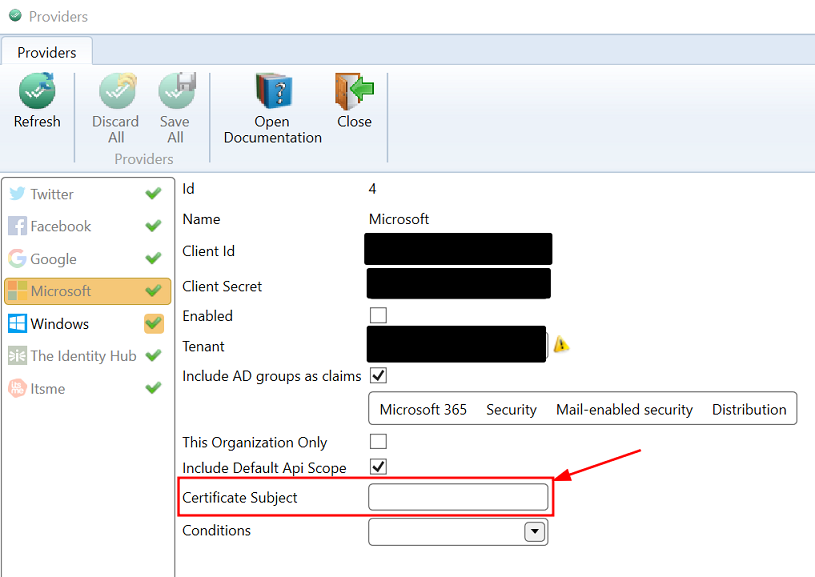
Microsoft Provider
Open the Security Providers dialog, open the Application Menu (1), select Security (2), click on Providers (3).

Change the certificate Subject name in the correct field:
Recycle the Authority service on the IIS server, even if the certificate name hasn't changed to make sure the new certificate information is properly read.