Ometa Framework Provider Configuration
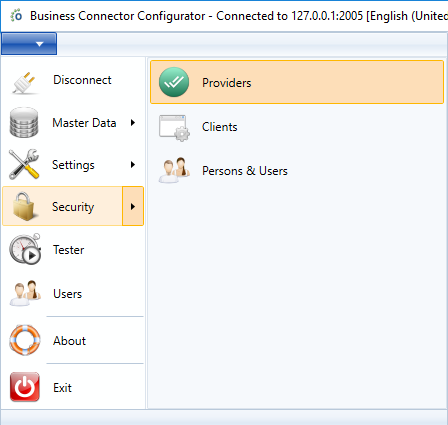
When a provider is configured on its owning platform, we can start using it within the Ometa Framework. To enable a provider, startup the WpfGUI application, click on the application menu and click on providers.
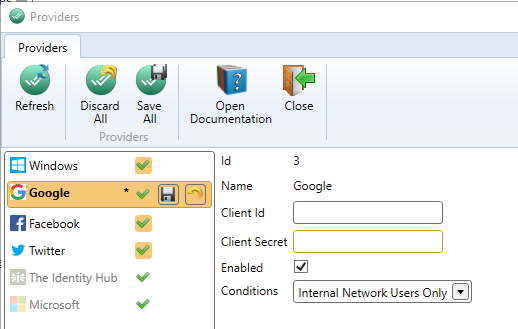
For each provider, you'll need to configure some parameters if you want to use them in the Ometa Framework. To obtain those parameters, please read the platform configuration article of the provider you wish to enable.
Note
The Windows provider is an exception because a local AD does not support OAuth2.0. If you want to use the Windows provider, the only thing you need to do is enable it here and enable Windows authentication on the Authority Service. Read the Windows (AD) article for more information on how to do this.
The client id is assigned to your app when you configured it on its platform.
Microsoft
If you enable the Microsoft provider, you can configure some additional settings.
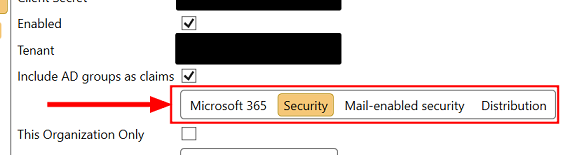
The Microsoft provider has the capability to include assigned AD groups in Microsoft Entra as claims during the login to the Ometa framework. This feature is enabled by default. If this is not desired behaviour or there are issues (due to lacking access rights or too many AD groups assigned), there are 2 options to change the AD groups retrieval, either by fully disabling the automatic loading or retrieve a limited set of AD groups for inclusion as claims:
Disable the automatic loading by unchecking the option Include AD groups as claims.

Filter AD groups to a limited set. In the example only Security AD groups will be added. Multiple selections are possible.
Important
If the Include AD groups as claims feature is enabled but no filter is selected, the Microsoft provider will always fall back to the loading of all AD groups with property SecurityEnabled set to True as that was the behaviour in previous framework versions.
Please note that different types of AD groups can have the property SecurityEnabled set to True, not only Security groups. For more information, consult the article Group types in Microsoft Entra ID and Microsoft Graph.
End-user experience
Only enabled providers with filled-in client id and secret will be shown on the providers screen of the user.

Note
If only one provider is enabled, the user will never see the screen and will immediately be redirected to the enabled provider.
Important
If you make changes to the client id or secret of one or more providers, you must restart the Authority Service for these changes to take effect. Enabling or disabling a provider is possible without restarting the Authority Service.